


Wild Apricot’s file storage gives your members a list of file links. You can keep your Wild Apricot site and add a searchable document library to any page with the HTML personalizado gadget. Members can then search, filter, preview and download your documents without leaving the page.
Antes de comenzar: You need a paid Wild Apricot plan. The free trial switches off custom code, so the Edit code button on the Custom HTML gadget stays greyed out until you upgrade. You also need to add our domain to your Wild Apricot JavaScript whitelist, which is covered in Step 2. Without it, Wild Apricot blocks the library.
Paso 1: Copia tu código de inserción
Log in to Document Library Pro y haz clic Publicar biblioteca, y luego haz clic en Copia el código. If you’ve built more than one library, go to the Libraries screen and copy the embed code for your Wild Apricot library from there.
Your code has two lines, like the example below, with your own library address in place of your-library:
<iframe src="https://your-library.documentlibrary.app/?dlp_embed=1" title="Document library" style="display:block;width:100%;border:0;height:600px;" loading="lazy"></iframe>
<script src="https://your-library.documentlibrary.app/?dlp_embed_resize=1" async></script>
Step 2: Add our domain to your JavaScript whitelist
Wild Apricot only loads code and embedded pages from domains on its whitelist. Our domain isn’t on its default list, so you need to add it once for the whole site.
- In your Wild Apricot admin, go to Website → Settings.
- bajo Website security, haz clic JavaScript whitelist.
- En el Custom whitelisted domains section, type *.documentlibrary.app en la tarjeta Domain name box.
- Clic Add domain, then save the page.
If your library uses a custom domain, such as docs.yourassociation.org, add that domain as well.
Step 3: Create a page for your library
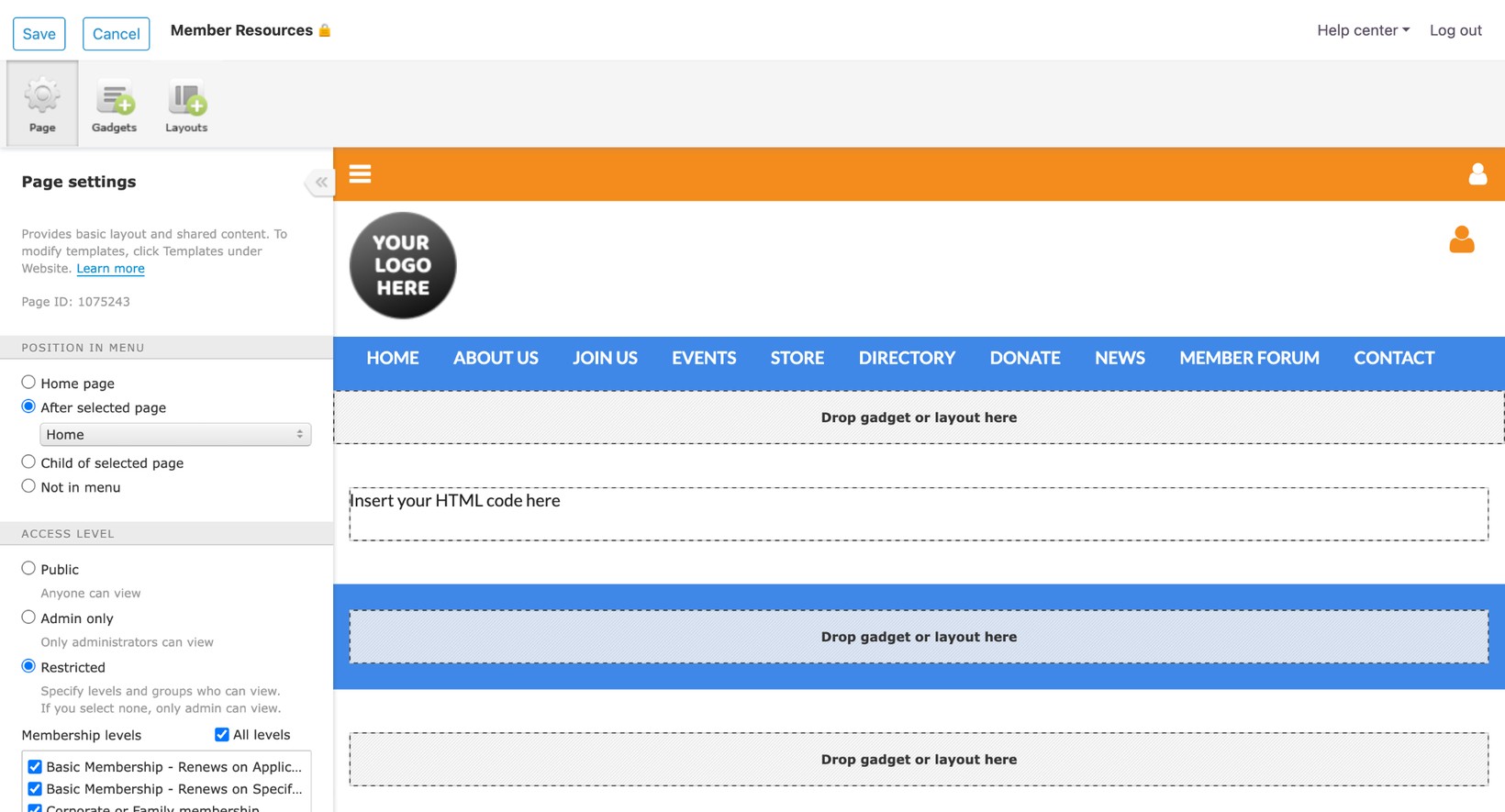
- Ir a Website → Site pages y haz clic Add page.
- En Page settings, give the page a name, such as Member Resources.
- bajo Position in menu, choose where the page appears in your menu.
- bajo Access level, elige Pública for an open library. For a members-only library, choose Restricted and tick the membership levels that can see it.
Step 4: Add a Custom HTML gadget
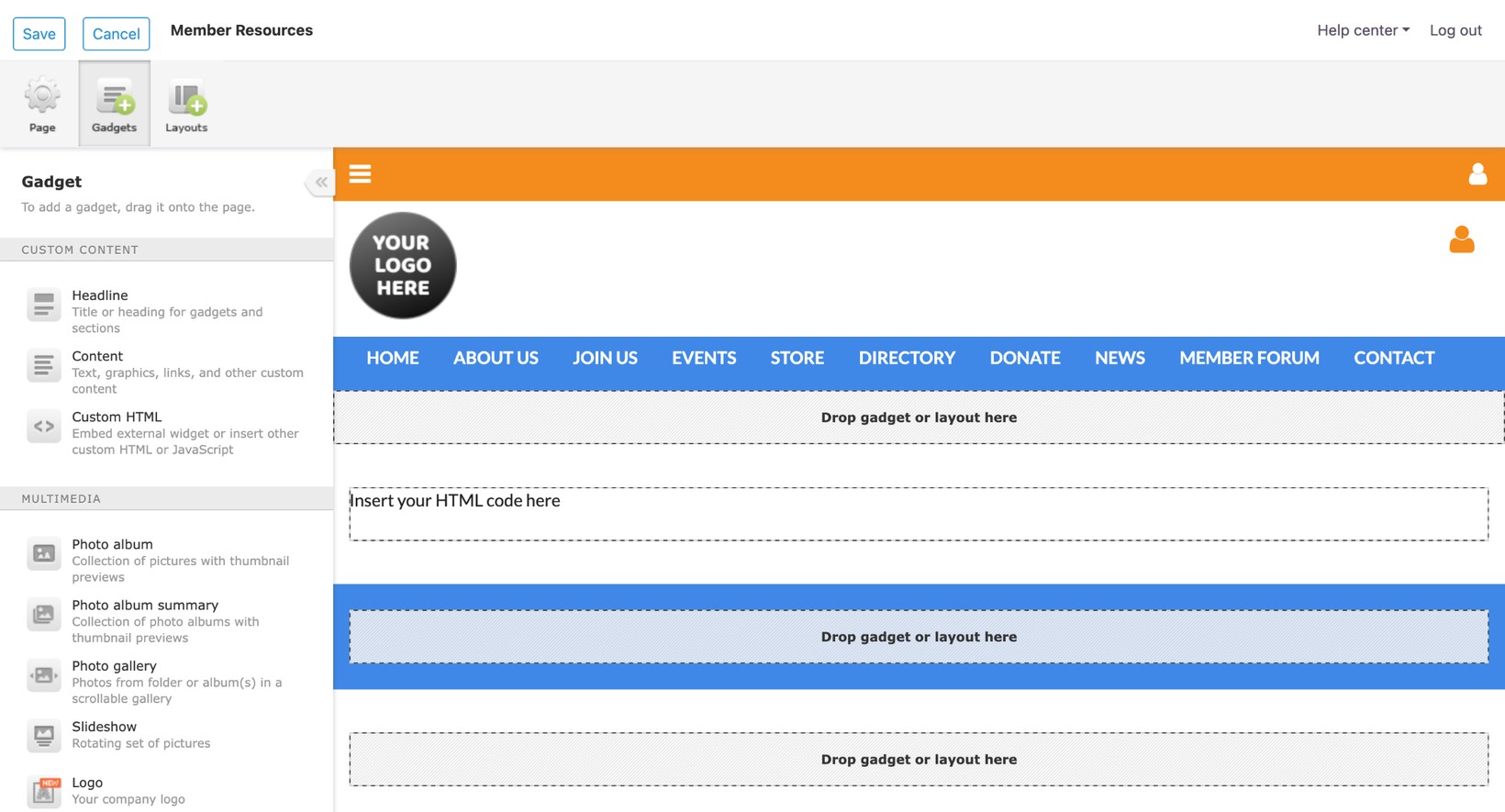
- Clic Gadgets at the top of the left panel.
- Arrastra el elemento HTML personalizado gadget from the Custom content section onto the page, where it says Drop gadget or layout here.
- Click the gadget to open its settings, then click Edit code.
- Delete the placeholder text and paste the embed code you copied in Step 1. Paste both lines.
- Save the code, then click Save at the top left of the page editor.
Step 5: Check the library on your Wild Apricot site
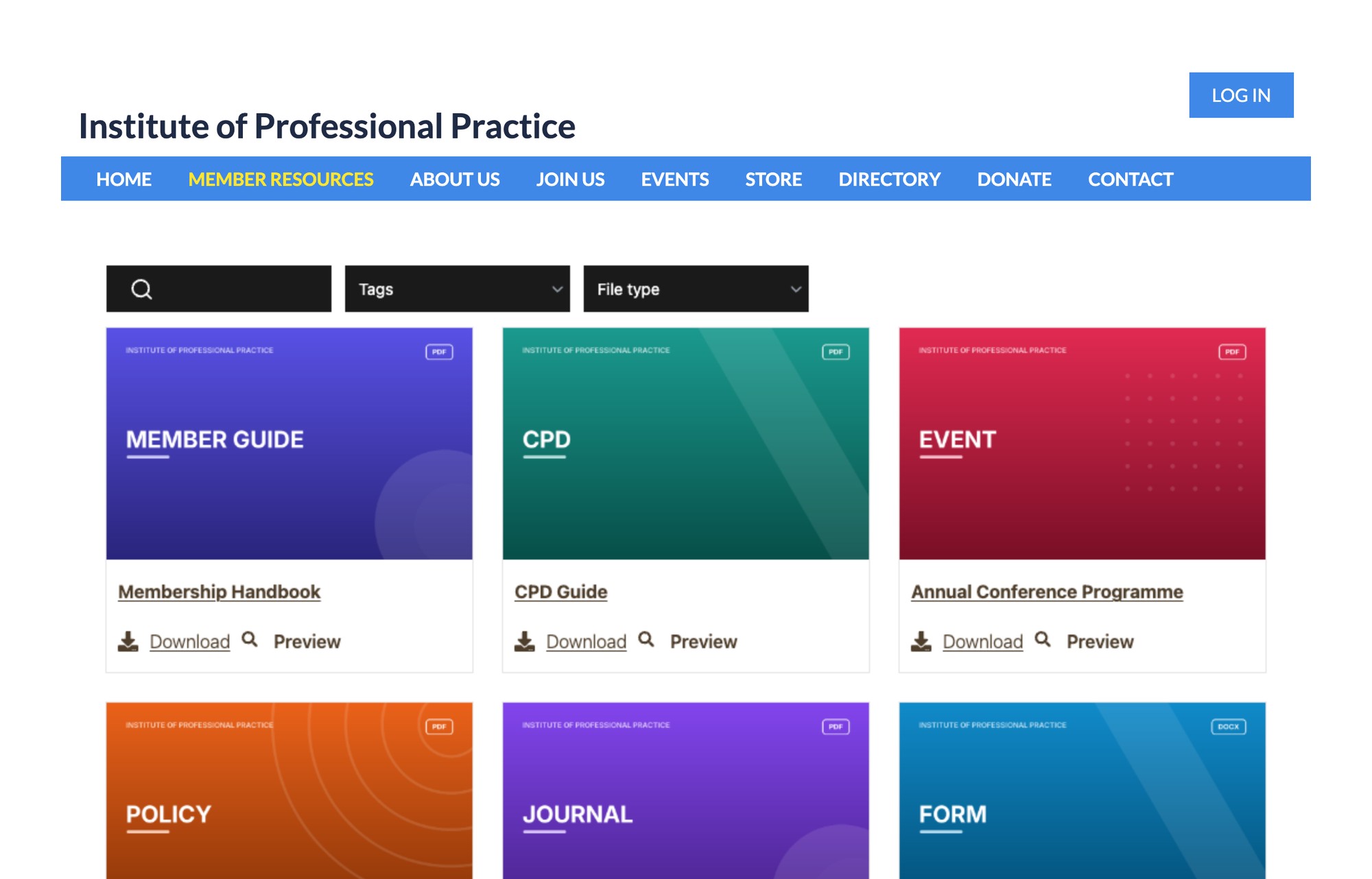
Clic Public view and open your new page. The search box, filters and documents should all appear, and the page grows to fit the library. When you add or change documents in Document Library Pro, the page updates straight away, so you don’t need to edit the gadget again.
Quién puede ver la biblioteca
If you set the page to Restricted, Wild Apricot only shows it to members who are logged in at the levels you ticked. The library address inside your embed code only works inside an embed like this one. If someone opens that address in a browser tab, they won’t see the library.
The address on its own doesn’t fully protect your documents. If your association shares confidential papers, such as board minutes or salary surveys, add a password to your library as well. You can also stop people opening files from a copied link with the Bloquear enlaces directos a archivos setting. You’ll find both options under Control de acceso en el plan Advanced.
If the library doesn’t appear
Grey box with a broken page icon
Wild Apricot is blocking the library. Check that *.documentlibrary.app is in your Custom whitelisted domains, as in Step 2.
Edit code is greyed out
Your Wild Apricot account is still on the free trial. Upgrade to a paid plan to add custom code.
The page shows Insert your HTML code here
The gadget is still empty. Open it again, click Edit code and paste the embed code.
Free setup for your Wild Apricot library
Our team can build your library for you at no cost. To ask for this, fill in the form on our servicio gratuito de configuración .