





El componente Embed de Framer es todo lo que necesitas para colocar tu biblioteca de documentos alojada en cualquier página. Los pasos siguientes cubren todo el proceso de principio a fin.
Antes de comenzar: Puedes usar el componente Embed en el plan gratuito de Framer, y tu biblioteca aparece en cuanto el sitio se publica. Ten en cuenta que los sitios gratuitos se publican en una dirección framer.website e incluyen una pequeña insignia “Made in Framer”. Pasar a un plan de pago de Framer elimina esa insignia y desbloquea tu propio dominio personalizado.
Paso 1: Copia tu código de inserción
En tu panel alojado, abre Publicar biblioteca para encontrar tu código de inserción y copiarlo. La mayoría de los sitios tienen una sola biblioteca, y la página Publicar biblioteca es donde vive su código de inserción. (Si has creado más de una biblioteca, copia el código de la que quieras desde la pantalla Libraries en su lugar.) Pega siempre el código exacto de tu propio panel, no el ejemplo a continuación:
<iframe src="https://your-library.documentlibrary.app/?dlp_embed=1" title="Document library" style="width:100%;border:0;height:600px;" loading="lazy"></iframe>
<script src="https://your-library.documentlibrary.app/?dlp_embed_resize=1" async></script>
Paso 2: Abre la página de tu biblioteca
Dentro del editor de Framer, ve a la página que contendrá la biblioteca. Si prefieres usar una página nueva, créala desde el panel Pages y dale un nombre claro como biblioteca de documentos.
Paso 3: Añade un componente Embed
Elige Insertar, escribe Insertar en el cuadro de búsqueda y arrastra el Insertar componente al lugar donde debe ir la biblioteca.
Paso 4: Pega tu código de inserción
Mantén seleccionado el componente Embed para que sus ajustes aparezcan a la derecha. Cambia el tipo de URL a HTML, y después coloca el código del paso 1 en el HTML .
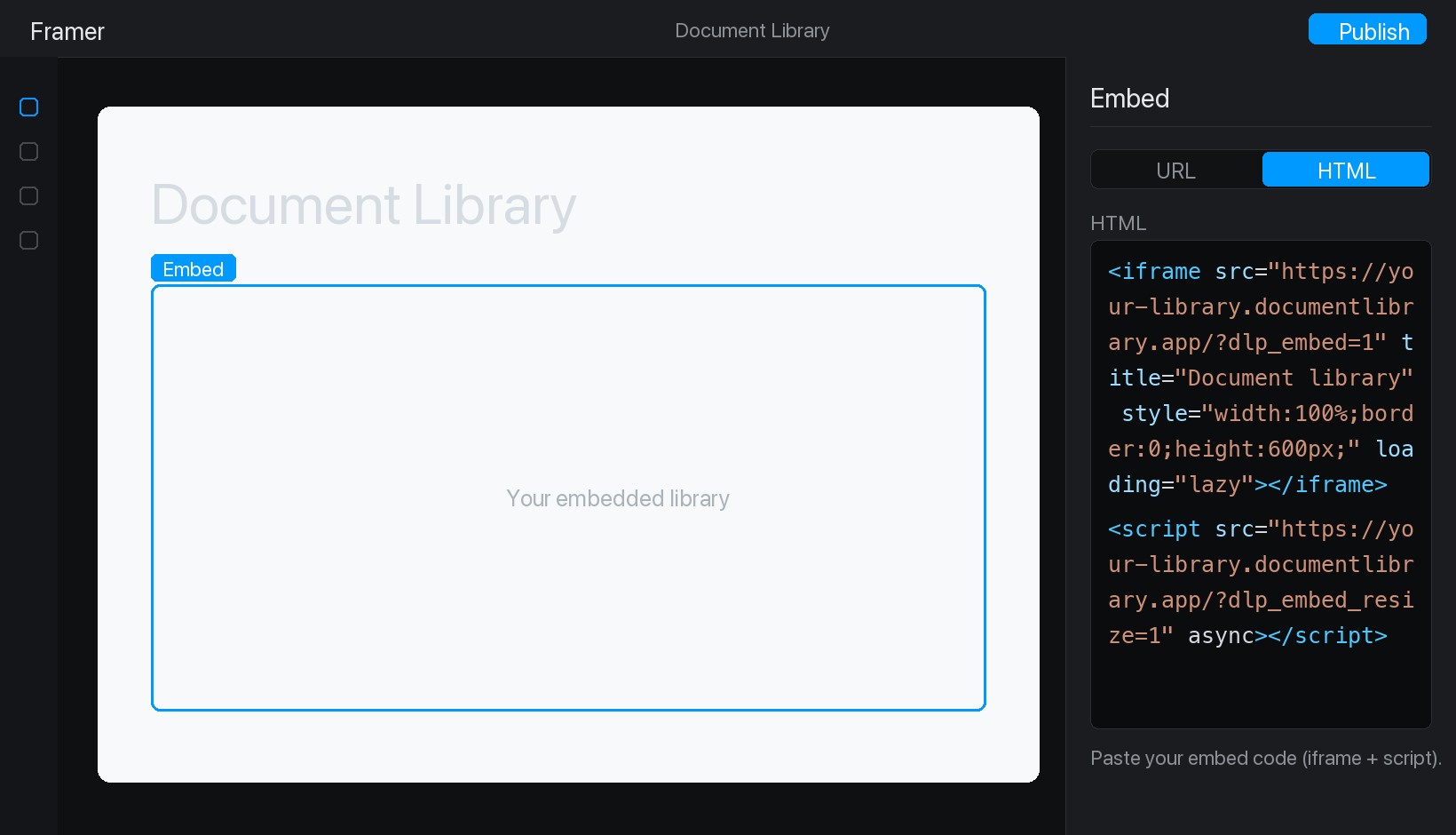
Paso 5: Publica y ve tu biblioteca
Pulsa Publicar en la parte superior derecha y después abre tu sitio en vivo. Tu biblioteca de documentos ya está en su sitio, y los visitantes pueden buscar en ella, filtrar por categoría y previsualizar o descargar cualquier documento.