





Con un Code Block de Squarespace, puedes colocar tu biblioteca de documentos alojada en cualquier página de tu sitio. Los pasos siguientes cubren todo el proceso.
Antes de comenzar: los scripts incrustados dentro de Code Blocks son una función de pago de Squarespace que requiere el plan Business o superior. Ten en cuenta también que la biblioteca solo es visible cuando tu sitio está en línea. Mientras editas, Squarespace muestra un marcador “Script Disabled” en lugar de la biblioteca funcionando.
Paso 1: Copia tu código de inserción
En tu panel alojado, abre Publicar biblioteca para encontrar tu código de inserción y copiarlo. La mayoría de los sitios tienen una sola biblioteca, y la página Publicar biblioteca es donde vive su código de inserción. (Si has creado más de una biblioteca, copia el código de la que quieras desde la pantalla Libraries en su lugar.) Pega siempre el código exacto de tu propio panel, no el ejemplo a continuación:
<iframe src="https://your-library.documentlibrary.app/?dlp_embed=1" title="Document library" style="width:100%;border:0;height:600px;" loading="lazy"></iframe>
<script src="https://your-library.documentlibrary.app/?dlp_embed_resize=1" async></script>
Paso 2: Crea una página para tu biblioteca
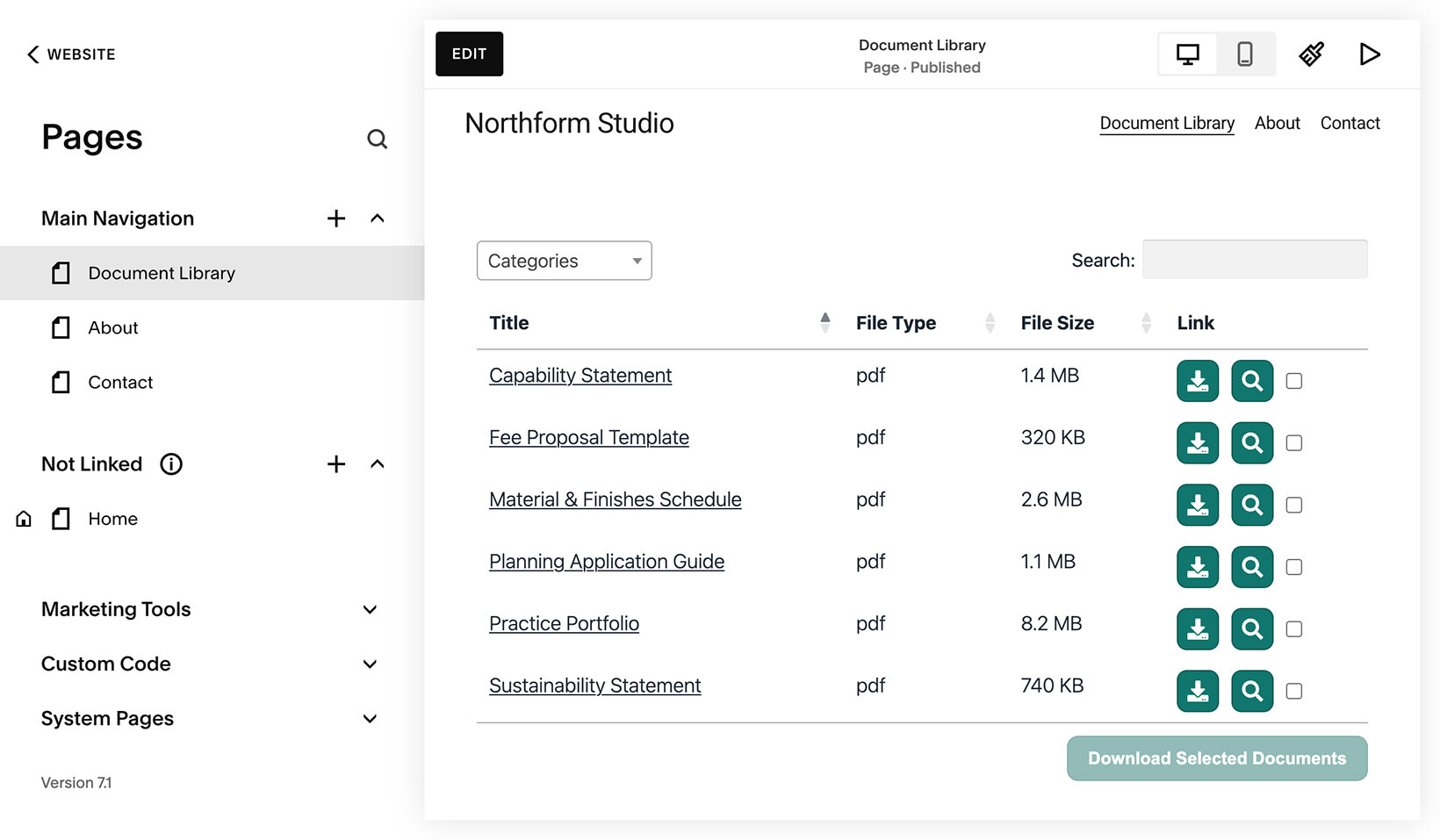
Desde tu panel de Squarespace, ve a Website → Pages. Haz clic en + botón junto a Main Navigation, elige Página, y después elige un diseño en blanco. Ponle un nombre como biblioteca de documentos, y Squarespace la colocará en tu menú de navegación por ti.
Paso 3: Añade un Code Block
Abre la página nueva y haz clic en Editar. Elige Añadir sección, elige una sección en blanco y después haz clic en Añadir bloque, busca Código, y selecciona el Código bloque.
Paso 4: Pega tu código de inserción
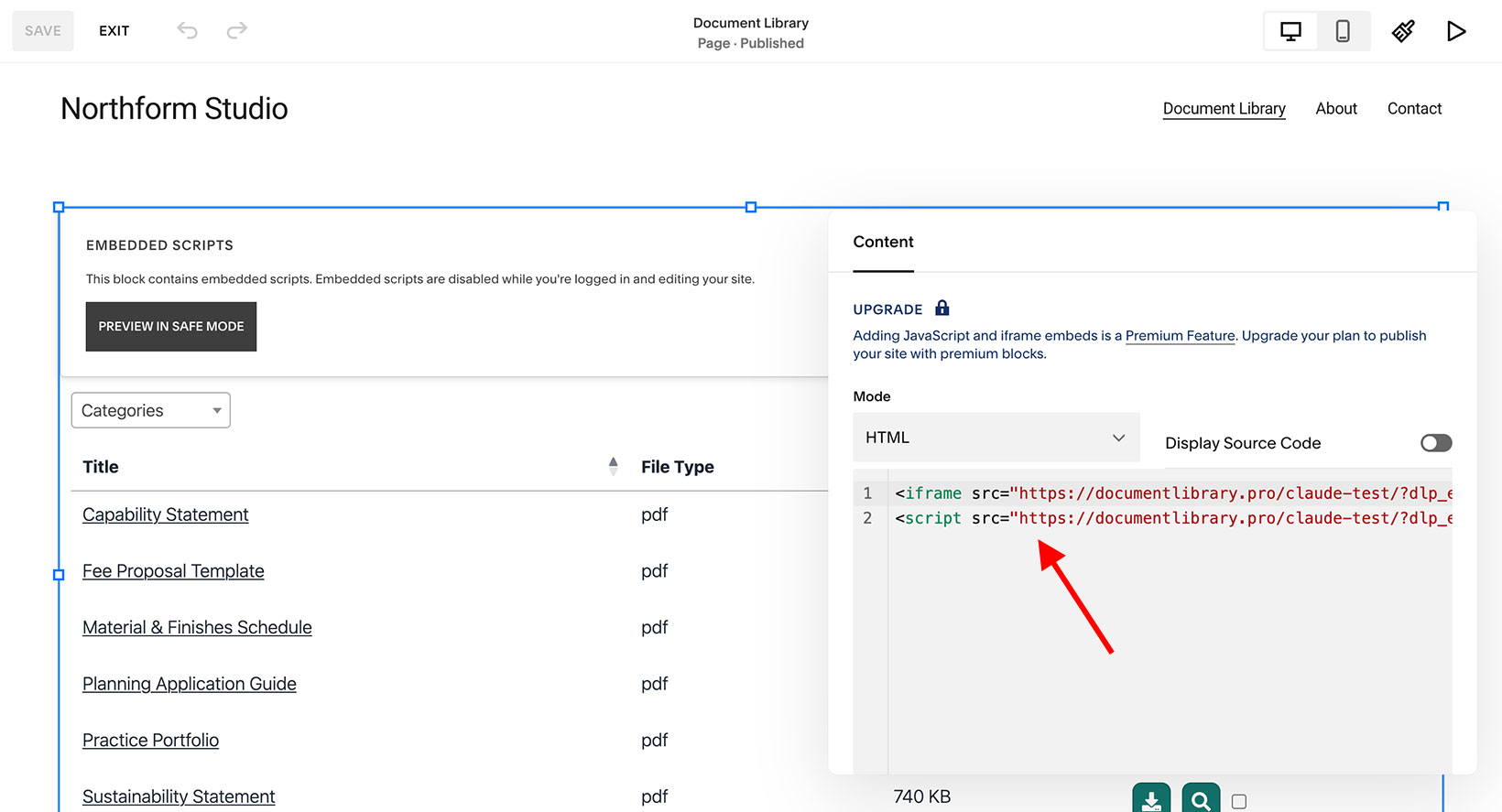
Haz clic dentro del Code Block para abrirlo. Confirma que el modo esté establecido en HTML, borra el texto predeterminado “Hello, World!” y pega el código de incrustación del paso 1.
Paso 5: Redimensiona el bloque para ajustarlo a tu página
No te saltes esta parte. Un Code Block empieza siendo estrecho, y un bloque estrecho fuerza la biblioteca a una sola columna. Selecciona el Code Block y arrastra su borde derecho hacia fuera hasta que abarque el ancho que quieres para la biblioteca, que normalmente es toda la página. Asegúrate de estar en la vista Escritorio (el icono del monitor en la parte superior) mientras lo haces, para dar a la biblioteca espacio suficiente para mostrar todo su conjunto de columnas.
Paso 6: Guarda y ve tu biblioteca
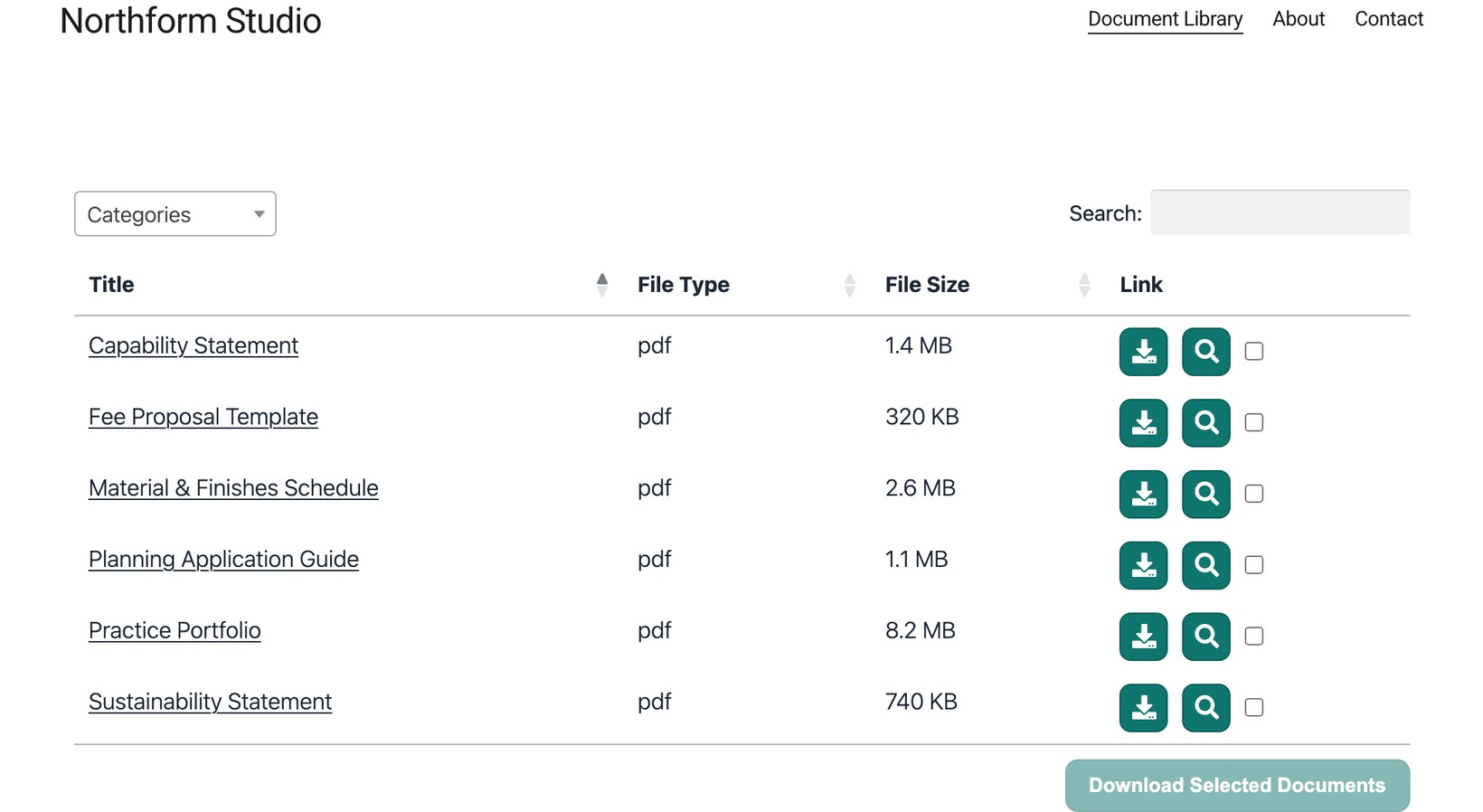
Clic Save. El bloque dirá “Script Disabled” mientras sigas editando, que es lo esperado. Cuando tu sitio esté publicado, abre la página para ver la biblioteca funcionando, donde los visitantes pueden buscar en ella, filtrar por categoría y descargar o previsualizar cualquier documento.
Usa el bloque Code en lugar del bloque Embed
Squarespace tiene tanto un bloque Code como un bloque Embed. Para Document Library Pro, usa el Código bloque.
Si añades tu código de incrustación a un Insertar bloque, Squarespace puede mostrar la biblioteca en un marco bajo de unos 200 píxeles de alto. Puede que veas el cuadro de búsqueda, los encabezados de columna y solo el primer documento, con espacio vacío debajo.
Para solucionarlo, elimina el bloque Embed y añade un bloque Code en su lugar. Después pega de nuevo tu código de incrustación siguiendo los pasos anteriores.