





Añadir tu biblioteca de documentos alojada a GoDaddy Websites + Marketing consiste en insertar una sección HTML. Aquí tienes el recorrido completo.
Antes de comenzar: Tanto el HTML personalizado como la publicación requieren un plan de pago de GoDaddy Websites + Marketing, y la biblioteca solo se vuelve visible cuando tu sitio está en línea.
Paso 1: Copia tu código de inserción
En tu panel alojado, abre Publicar biblioteca para encontrar tu código de inserción y copiarlo. La mayoría de los sitios tienen una sola biblioteca, y la página Publicar biblioteca es donde vive su código de inserción. (Si has creado más de una biblioteca, copia el código de la que quieras desde la pantalla Libraries en su lugar.) Pega siempre el código exacto de tu propio panel, no el ejemplo a continuación:
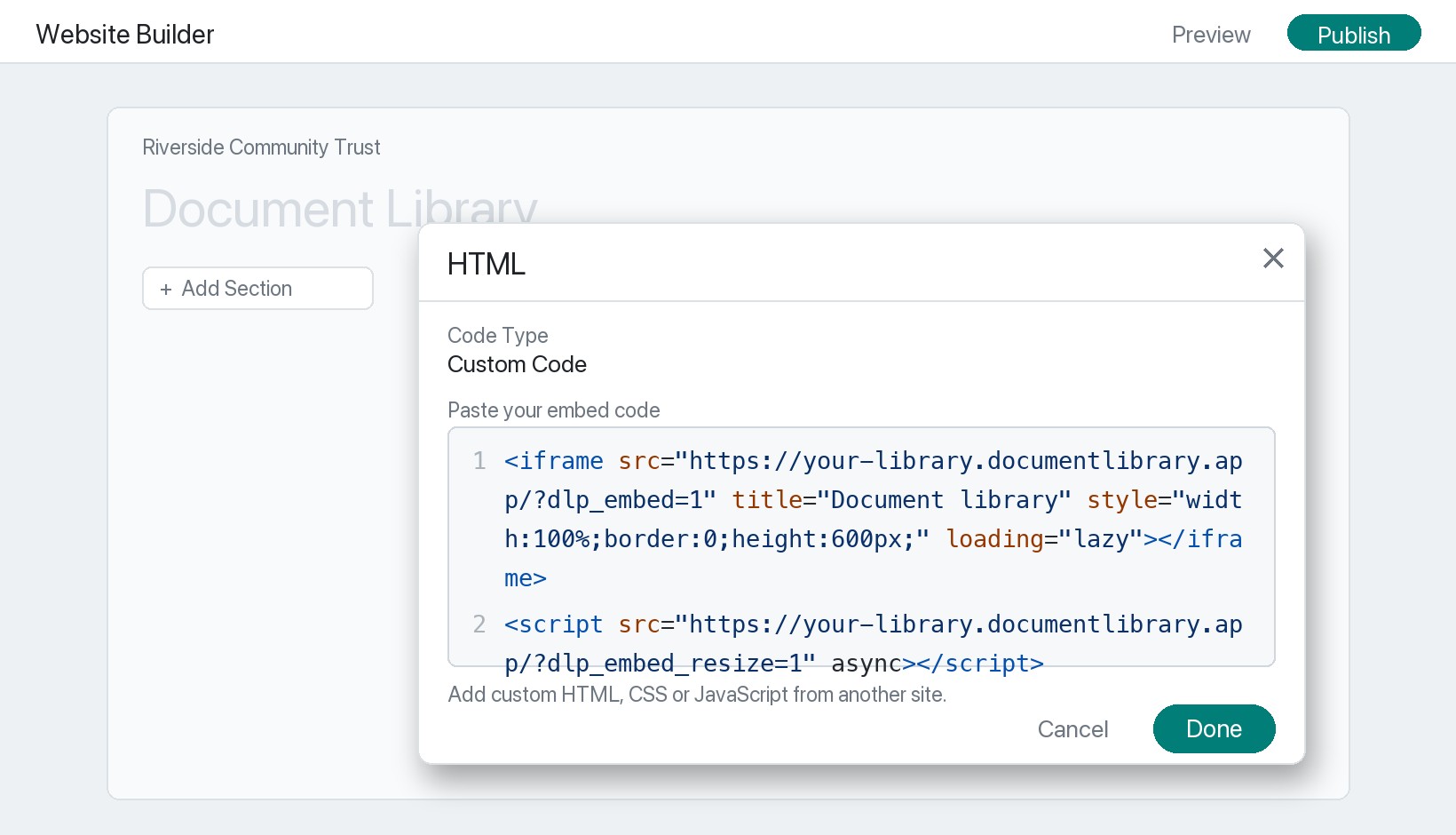
<iframe src="https://your-library.documentlibrary.app/?dlp_embed=1" title="Document library" style="width:100%;border:0;height:600px;" loading="lazy"></iframe>
<script src="https://your-library.documentlibrary.app/?dlp_embed_resize=1" async></script>
Paso 2: Abre la página de tu biblioteca
En el editor de sitios de GoDaddy, ve a la página que mostrará la biblioteca, o añade una nueva desde la navegación del sitio y ponle un nombre como biblioteca de documentos. Desplázate hasta el punto exacto donde quieres que se muestre la biblioteca.
Paso 3: Añade una sección HTML
Clic Añadir sección, busca HTML, y haz clic Añadir. GoDaddy insertará entonces una sección HTML que incluye un Código personalizado .
Paso 4: Pega tu código de inserción
Confirma que el tipo de código indique Código personalizado, coloca el fragmento del paso 1 en el campo y haz clic en Hecho.
Paso 5: Publica y ve tu biblioteca
Clic Publicar en la parte superior derecha y abre la página para encontrar tu biblioteca de documentos, lista para que los visitantes busquen, filtren por categoría y previsualicen o descarguen cada documento. Algo que debes esperar: mientras sigues editando, GoDaddy suele mostrar un marcador de posición donde está la sección HTML. Es normal, y la biblioteca real se muestra en la página publicada.