





Un elemento Code Embed es la vía para colocar tu biblioteca de documentos alojada en cualquier página de Webflow. Los pasos siguientes te llevan por todo el proceso.
Antes de comenzar: Code Embed es una función de pago de Webflow, incluida con el plan Basic Site y superiores. El plan gratuito Starter bloquea el código personalizado, por lo que necesitas un plan Site de pago antes de poder añadir y publicar la incrustación. Ten en cuenta que la biblioteca solo se renderiza cuando previsualizas o publicas. Mientras el Designer está abierto para editar, Webflow muestra un marcador de posición en lugar de la biblioteca en vivo.
Paso 1: Copia tu código de inserción
En tu panel alojado, abre Publicar biblioteca para encontrar tu código de inserción y copiarlo. La mayoría de los sitios tienen una sola biblioteca, y la página Publicar biblioteca es donde vive su código de inserción. (Si has creado más de una biblioteca, copia el código de la que quieras desde la pantalla Libraries en su lugar.) Pega siempre el código exacto de tu propio panel, no el ejemplo a continuación:
<iframe src="https://your-library.documentlibrary.app/?dlp_embed=1" title="Document library" style="width:100%;border:0;height:600px;" loading="lazy"></iframe>
<script src="https://your-library.documentlibrary.app/?dlp_embed_resize=1" async></script>
Paso 2: Crea una página para tu biblioteca
En el Designer de Webflow, abre el Pages panel y haz clic en el + para crear una página nueva, con un nombre como biblioteca de documentos. Para que los visitantes puedan encontrarla, añade un enlace a esta página en tu menú de navegación.
Paso 3: Añade un elemento Code Embed
Con tu nueva página abierta, haz clic en el + panel (Añadir elementos), busca Insertar, y arrastra el Inserción de código elemento a la sección donde debe ir la biblioteca.
Paso 4: Pega tu código de inserción
El editor de código aparece por separado. Borra cualquier texto de marcador de posición, pega el fragmento del paso 1 y haz clic en Guardar y cerrar.
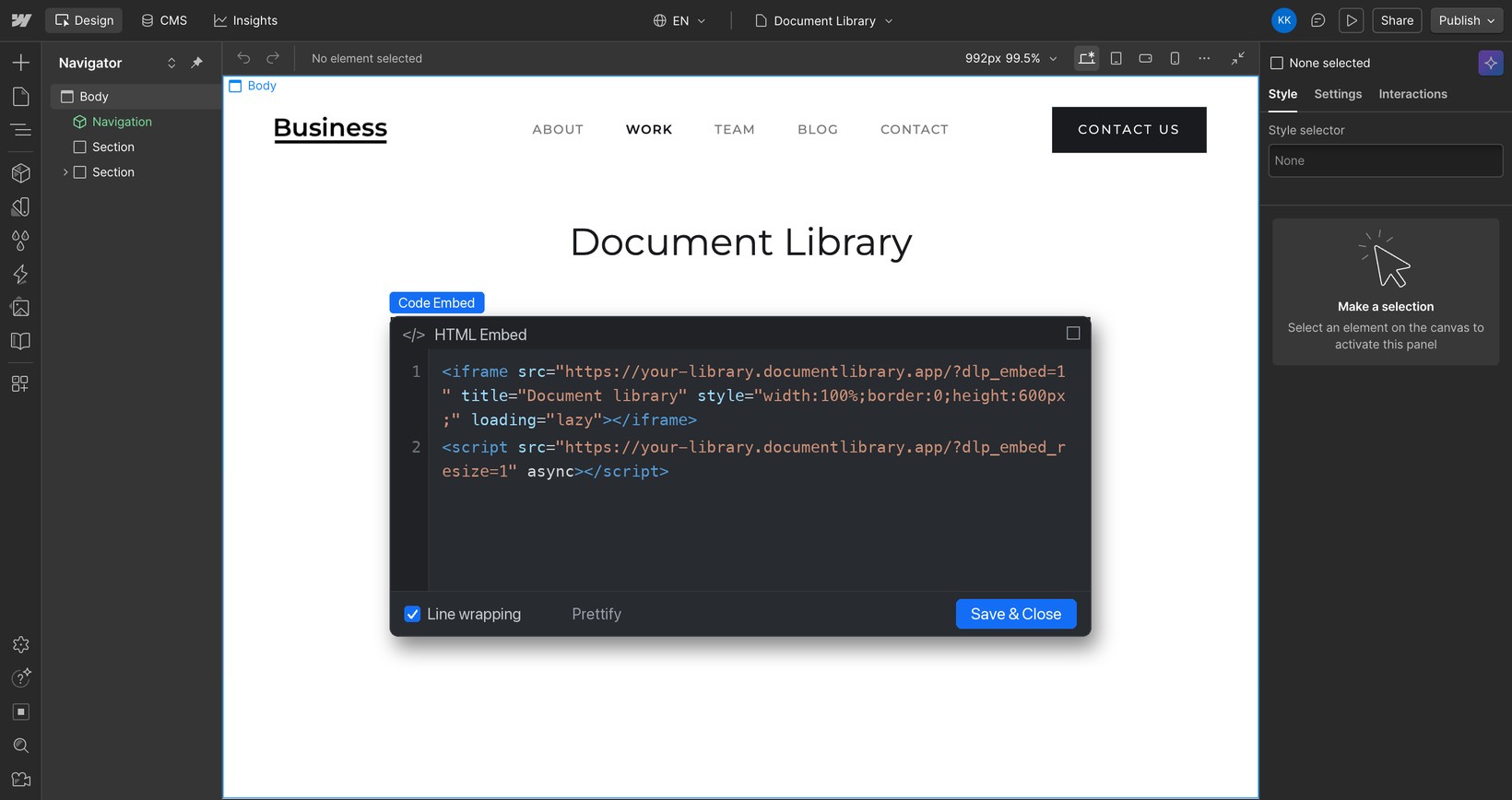
Paso 5: Publica y ve tu biblioteca
Durante la edición, Webflow muestra un marcador de posición donde está el Code Embed. Para publicar el sitio, haz clic en Publicar en la parte superior derecha y abre la página para ver tu biblioteca de documentos, donde los visitantes pueden buscar, filtrar por categoría y previsualizar o descargar cada documento. Si quieres echar un vistazo antes de publicarlo, haz clic en Vista previa (el icono del ojo) en el Designer.