





Salesforce Web Tabs te permite insertar y mostrar una biblioteca de Document Library Pro como una pestaña de ancho completo dentro de Salesforce. Los usuarios pueden abrir la biblioteca desde Salesforce como cualquier otra pestaña, sin necesidad de código.
Antes de comenzar: You need to be a Salesforce admin, or have the Customize Application permission. Salesforce lists Web Tabs for Contact Manager, Group, Professional, Enterprise, Performance, Unlimited and Developer editions. Web Tabs work in Lightning Experience and Salesforce Classic. If you use another Salesforce edition and cannot see Web Tabs, check with Salesforce before continuing. The main difference from other embed guides is that Salesforce asks for a web address, not the full two-line embed code.
You do not need to add your library to Trusted URLs or CSP Trusted Sites.
Step 1: Copy your library address
Open your Document Library Pro dashboard and go to Publicar biblioteca. Copy the embed code for your library.
If you have more than one library, copy the embed code from the Libraries screen for the library you want to show in Salesforce.
The library address is the part inside src=”…” on the first line of the embed code. For example:
<iframe src="https://your-library.documentlibrary.app/?dlp_embed=1" title="Document library" style="display:block;width:100%;border:0;height:600px;" loading="lazy"></iframe>
In this example, you would copy this address:
https://your-library.documentlibrary.app/?dlp_embed=1
Use your own library address, not the sample above. Copy everything between the quote marks, including anything after the question mark.
Step 2: Create a Salesforce Web Tab
- In Salesforce, click the gear icon and choose Configuración.
- En Quick Find, type Tabs, then select Tabs.
- En el Web Tabs section, click New.
- Elige Full page width, y luego haz clic en Siguiente.
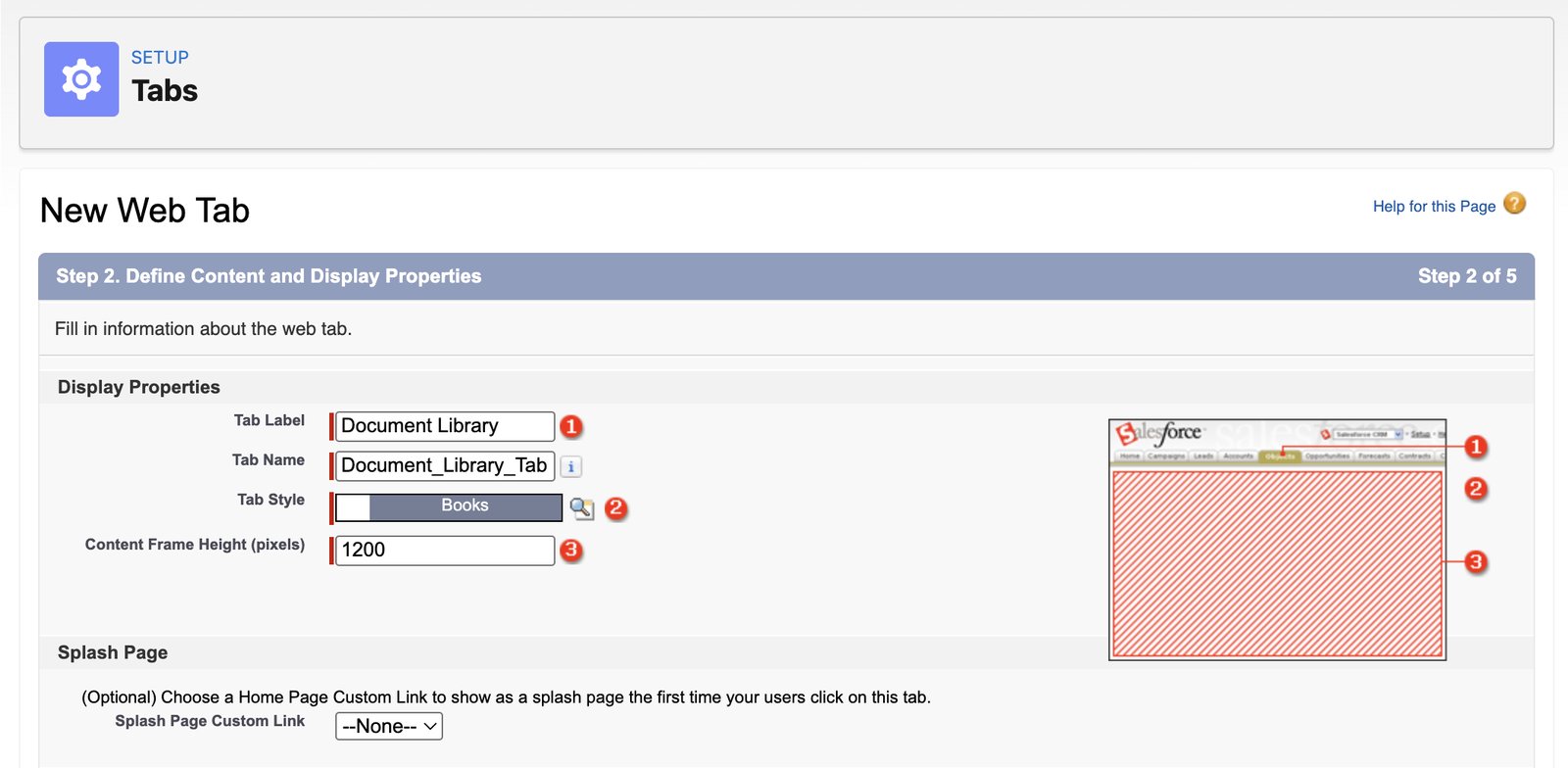
- Enter a Tab Label, such as Document Library. Salesforce fills in the Tab Name.
- Haz clic en el Tab Style lookup icon and pick an icon and color.
- Set Content Frame Height (pixels). The default is 600. 1200 suits most libraries, or set it taller for a long one. Inside Salesforce, the library cannot resize itself. This box sets how tall the library area is. If the library is taller, Salesforce shows a scroll bar inside the tab.
- Clic Siguiente.
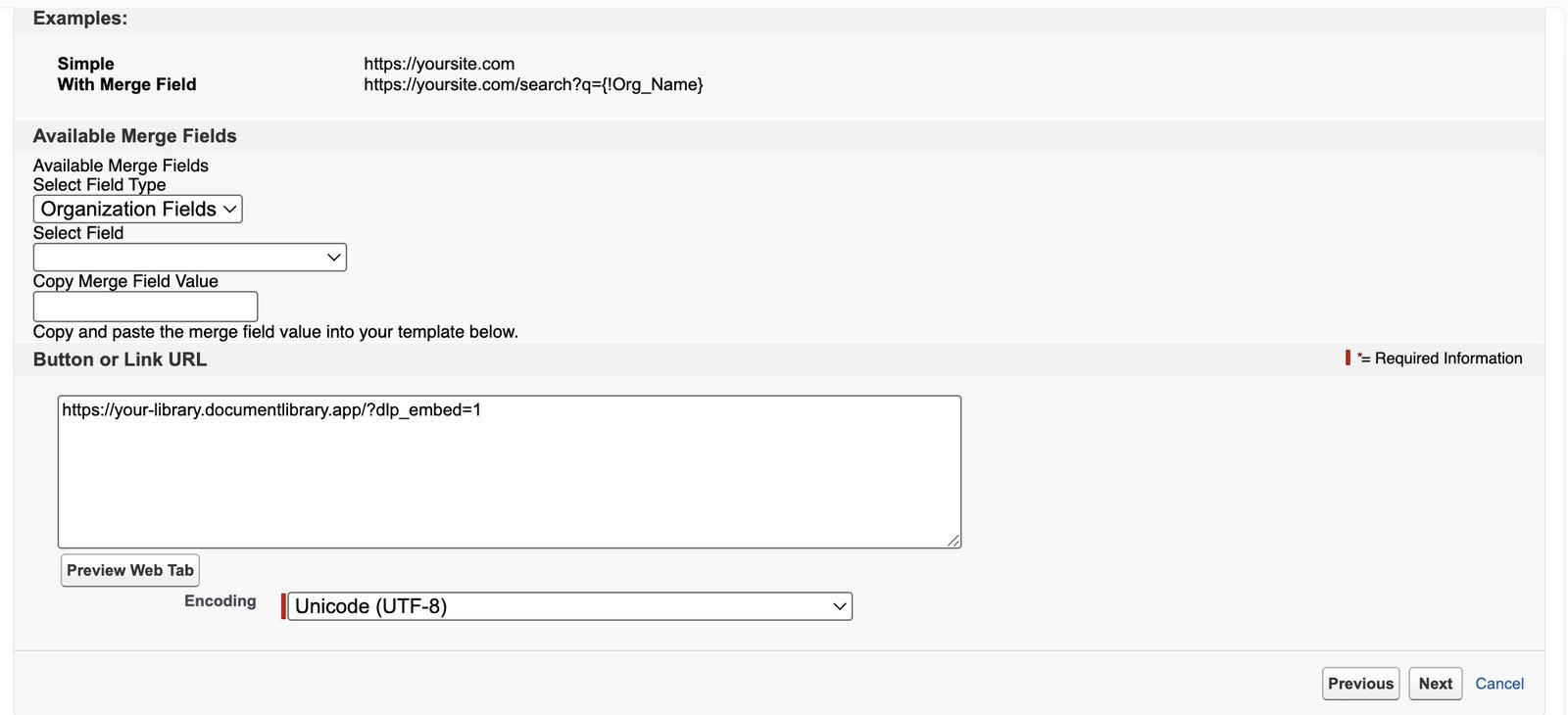
- Paste the library address into the Button or Link URL box. Leave Encoding as it is. Click Siguiente.
- Choose which user profiles see the tab. Default On shows it to everyone. Click Siguiente.
- Choose which Salesforce apps include the tab. All apps are ticked by default. Click Save.
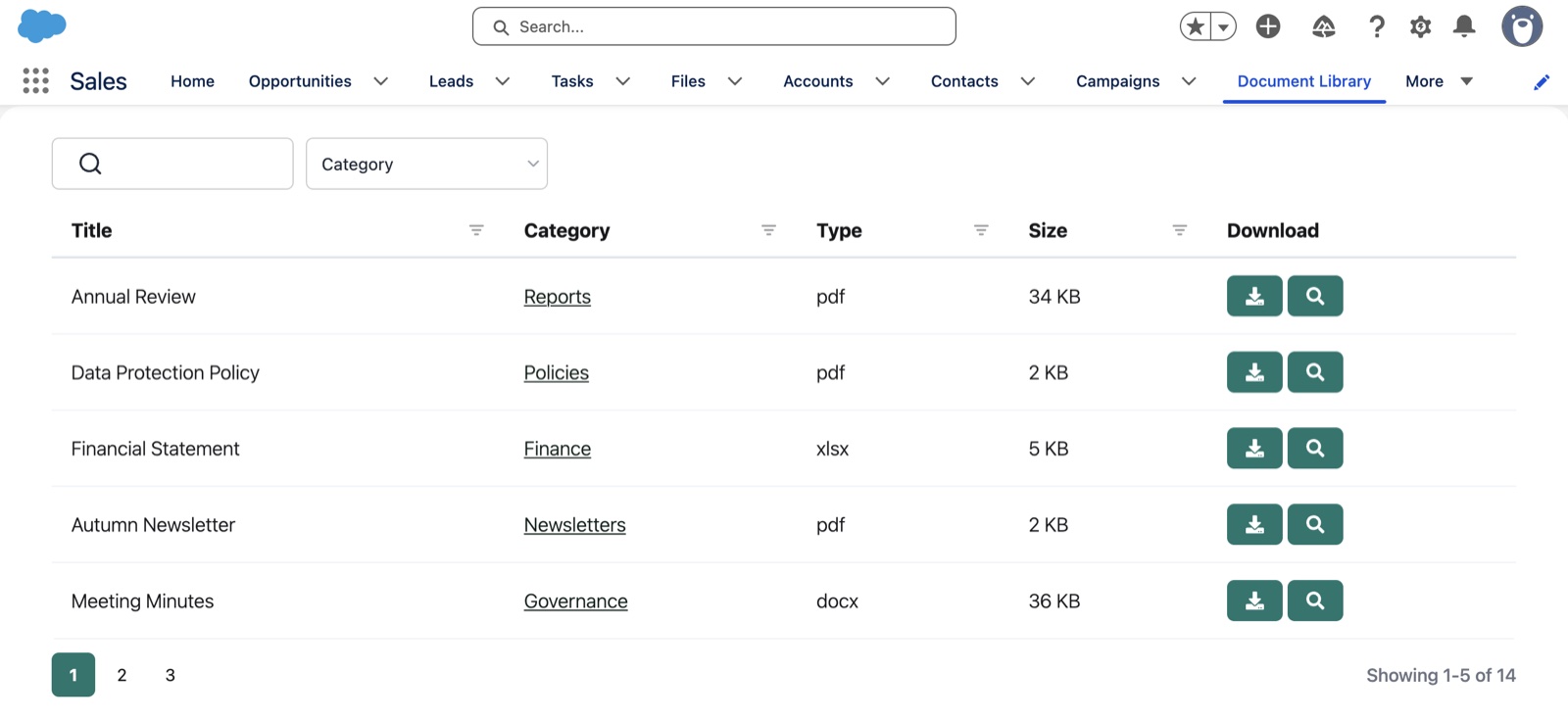
Salesforce adds the Web Tab to each app you selected in the last step; for example, the Sales app shows it next to Campaigns. Some apps hide it under More, and users can also find it with the App Launcher (the grid of dots, top left) by typing the tab name. Users cannot add a Web Tab with the pencil icon, so an admin must add it in App Manager if an app is missing it.
Step 3: Check the result
Open the tab in Salesforce and check that your document library appears full width. The search box, category filter and page numbers should all appear inside the tab.
Search should work as normal. When you click preview, the document library opens the preview inside the tab, with a close button.
Changes you make in Document Library Pro show in Salesforce straight away. You do not need to edit the Salesforce tab again after updating your library.
Quién puede ver la biblioteca
En Salesforce, tu biblioteca de documentos se muestra dentro del Web Tab para las personas cuyo perfil puede abrir esa pestaña. La dirección de la biblioteca que pegas en el Web Tab solo funciona dentro de un elemento insertado como esa pestaña. Si alguien abre la misma dirección en una pestaña del navegador, no se mostrará la biblioteca.
La dirección no es 100% infalible. Para documentos confidenciales como listas de precios o políticas internas, protege tu biblioteca de documentos con contraseña y activa Bloquear enlaces directos a archivos en la página Control de acceso . Ambos están incluidos en el plan Advanced.
Si la biblioteca de documentos no aparece
Blank tab or error
Check that you pasted only the library address, not the whole embed code. The address must start with https://.
Library cut off or scroll bar inside the tab
Edit the tab in Salesforce and increase Content Frame Height (pixels). You can find it from Configuración > Tabs > Editar next to the tab.
Tab not visible for some users
Check the profile visibility you chose when creating the tab. Users only see the tab if their profile has access to it.
Want us to set it up for you?
If you would rather we build the library for you, request our servicio gratuito de configuración.