





Deine gehostete Dokumentbibliothek zu einer WordPress-Seite oder einem Beitrag hinzuzufügen, bedeutet nur, einen kurzen Einbettungscode einzufügen. Das Ganze dauert ein paar Minuten, ohne Installation und ohne laufende Updates.
Das Wichtigste: dein Einbettungscode gehört in einen Benutzerdefiniertes HTML Block, wenn du den Block-Editor verwendest, oder in den Text Tab, wenn du den Classic Editor verwendest. Vermeide den normalen visuellen Editor, der Einbettungscode beim Speichern entfernen kann. Sowohl der Custom HTML-Block als auch der Text-Tab lassen ihn unverändert.
Bevor du startest: Kopiere deinen Einbettungscode
Öffne in deinem gehosteten Dashboard Publish Library , um deinen Einbettungscode zu finden, und kopiere ihn dann. Die meisten Websites haben eine einzige Bibliothek, und auf der Seite Bibliothek veröffentlichen befindet sich ihr Einbettungscode. (Wenn du mehr als eine Bibliothek erstellt hast, kopiere stattdessen den Code für die gewünschte Bibliothek aus dem Libraries Bildschirm.) Füge immer den exakten Code aus deinem eigenen Dashboard ein, nicht das Beispiel unten:
<iframe src="https://your-library.documentlibrary.app/?dlp_embed=1" title="Document library" style="width:100%;border:0;height:600px;" loading="lazy"></iframe>
<script src="https://your-library.documentlibrary.app/?dlp_embed_resize=1" async></script>
Füge deine Bibliothek zu einer Seite oder einem Beitrag hinzu
Für eine eigenständige Dokumentbibliothek, etwa eine Downloads-, Ressourcen- oder Publikationen-Seite, ist dies der richtige Weg.
- Gehe in deinem WordPress-Dashboard zu Seiten → Neu hinzufügen, oder öffne die vorhandene Seite oder den Beitrag, den du bearbeiten möchtest.
- Gib ihr einen Titel, zum Beispiel Dokumentenbibliothek.
- Wähle das + Button, tippe Benutzerdefiniertes HTML in die Suche ein und füge den Block ein.
- Füge deinen Einbettungscode in den Block ein.
- Wähle Veröffentlichen oder Aktualisieren.
- Damit Besucher sie finden, füge die Seite über Design → Menüs.
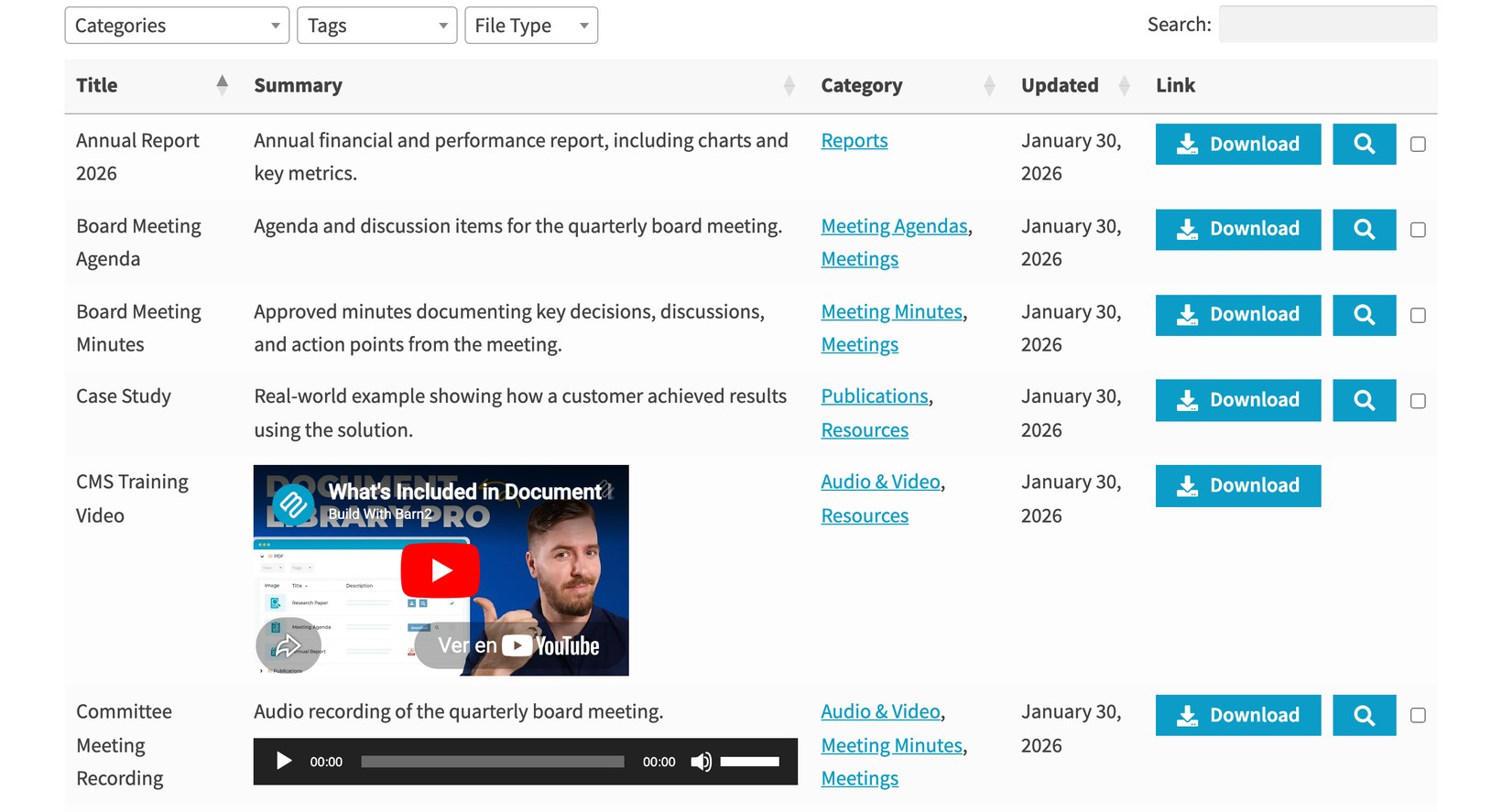
Auswählen Seite ansehen hinzu, um die Bibliothek live auf deiner Website zu sehen. Von dort aus können Besucher suchen, Ergebnisse nach Kategorie eingrenzen und jedes Dokument in der Vorschau ansehen oder herunterladen.
Classic Editor verwenden
Öffne auf einer Website mit Classic Editor die Seite und klicke auf den Text Tab oben rechts im Inhaltsfeld, der dich von Visuell zu HTML umschaltet. Füge den Einbettungscode an der Stelle ein, an der die Bibliothek erscheinen soll, und aktualisiere dann die Seite.
Wenn sich die Bibliothek nicht automatisch in der Größe anpasst
Im Einbettungscode ist ein kleines Hilfsskript enthalten, dessen Aufgabe es ist, die Bibliothek an ihren Inhalt anzupassen. Bestimmte WordPress-Sicherheitskonfigurationen entfernen Skripte, die Nicht-Administratoren hinzufügen. Falls das passiert, funktioniert die Bibliothek weiter, sie wird einfach mit fester Höhe und eigener Scrollleiste angezeigt. Damit das Größenanpassungsskript erhalten bleibt, füge den Code ein, während du als Administrator angemeldet bist.
Lieber selbst hosten?
Es gibt auch eine selbst gehostete WordPress-Plugin Version von Document Library Pro, die die Bibliothek direkt in deiner eigenen Website erstellt. Da die oben beschriebene gehostete Version keine Installation und keine Wartung erfordert, entscheiden sich die meisten WordPress-Benutzer dafür.