





Ein Code Embed-Element ist der Weg, um deine gehostete Dokumentbibliothek auf einer beliebigen Webflow-Seite zu platzieren. Die folgenden Schritte führen dich von Anfang bis Ende durch den Prozess.
Bevor du beginnst: Code Embed ist eine kostenpflichtige Webflow-Funktion, enthalten im Basic Site-Tarif und höher. Der kostenlose Starter-Tarif blockiert benutzerdefinierten Code, daher ist ein kostenpflichtiger Site-Tarif erforderlich, bevor du die Einbettung hinzufügen und veröffentlichen kannst. Beachte, dass die Bibliothek nur gerendert wird, wenn du eine Vorschau anzeigst oder veröffentlichst. Während der Designer zum Bearbeiten geöffnet ist, zeigt Webflow einen Platzhalter statt der Live-Bibliothek an.
Schritt 1: Kopiere deinen Einbettungscode
Öffne in deinem gehosteten Dashboard Publish Library , um deinen Einbettungscode zu finden, und kopiere ihn dann. Die meisten Websites haben eine einzige Bibliothek, und auf der Seite Bibliothek veröffentlichen befindet sich ihr Einbettungscode. (Wenn du mehr als eine Bibliothek erstellt hast, kopiere stattdessen den Code für die gewünschte Bibliothek aus dem Libraries Bildschirm.) Füge immer den exakten Code aus deinem eigenen Dashboard ein, nicht das Beispiel unten:
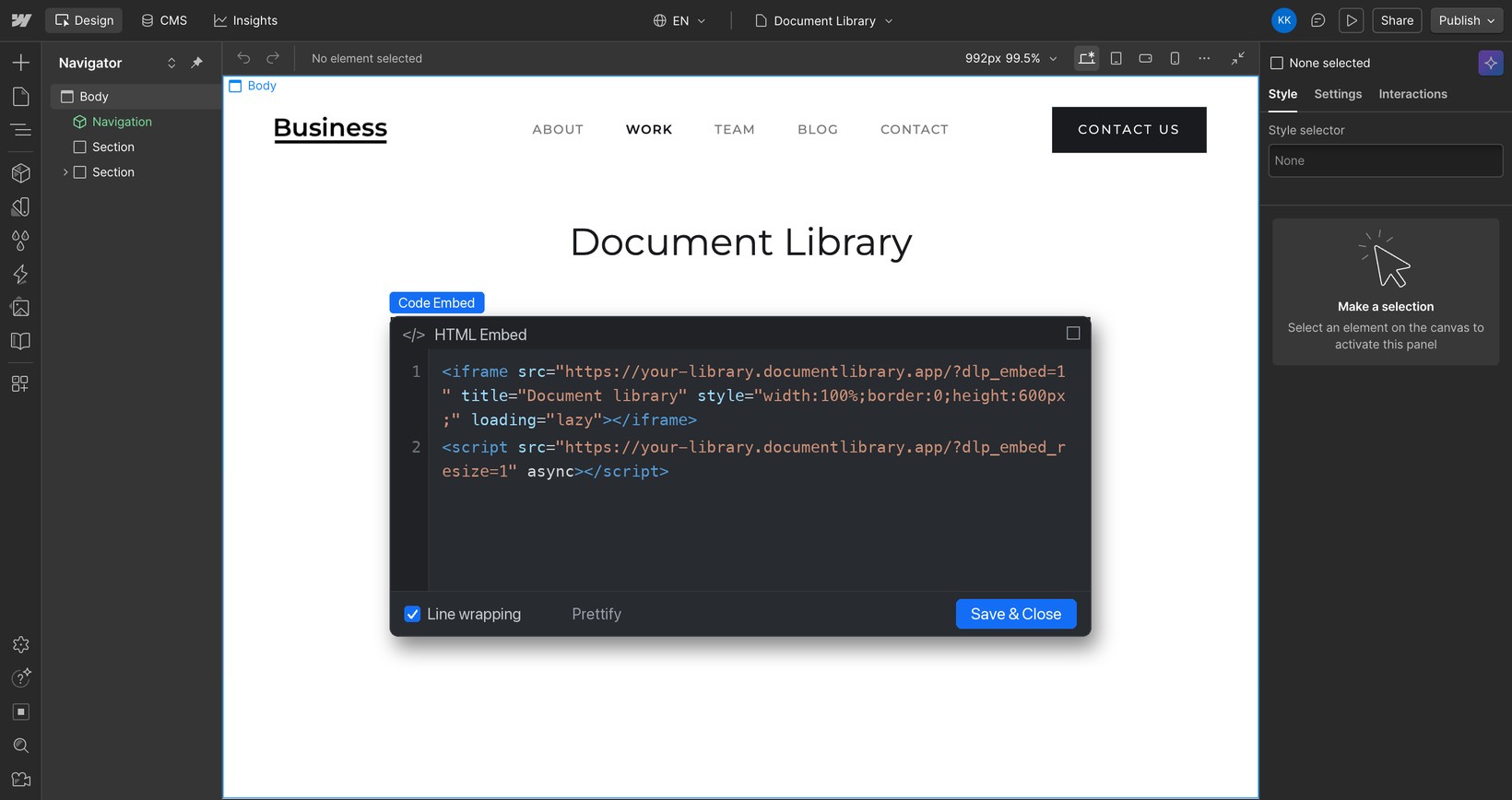
<iframe src="https://your-library.documentlibrary.app/?dlp_embed=1" title="Document library" style="width:100%;border:0;height:600px;" loading="lazy"></iframe>
<script src="https://your-library.documentlibrary.app/?dlp_embed_resize=1" async></script>
Schritt 2: Erstelle eine Seite für deine Bibliothek
Öffne im Webflow Designer das Seiten Panel und klicke auf + , um eine neue Seite zu erstellen, und nenne sie zum Beispiel Dokumentenbibliothek. Damit Besucher sie finden, füge in deinem Navigationsmenü einen Link zu dieser Seite hinzu.
Schritt 3: Füge ein Code Embed-Element hinzu
Klicke bei geöffneter neuer Seite auf das + Panel (Elemente hinzufügen), suche nach Einbetten, und zieh das Code einbetten Element auf den Abschnitt, in den die Bibliothek gehört.
Schritt 4: Füge deinen Einbettungscode ein
Der Code-Editor erscheint automatisch. Entferne allen Platzhaltertext, füge das Snippet aus Schritt 1 ein und klicke auf Speichern & Schließen.
Schritt 5: Veröffentliche deine Bibliothek und sieh sie dir an
Während der Bearbeitung zeigt Webflow einen Platzhalter an der Stelle des Code Embed an. Um die Website live zu schalten, klicke oben rechts auf Veröffentlichen und öffne dann die Seite, um deine Dokumentbibliothek zu sehen. Besucher können darin suchen, nach Kategorie filtern und jedes Dokument in der Vorschau ansehen oder herunterladen. Wenn du vor dem Livegang einen Blick darauf werfen möchtest, klicke im Designer auf Vorschau (das Augensymbol).