Lots of organizations keep their documents in Dropbox. Policies, board papers, forms and manuals all sit in neatly organized folders. Sooner or later, you need those files on your website too. That’s where Dropbox lets you down: There is no built-in way to embed a browsable folder on a website.
Most people paste a share link onto a page instead. It works, but every click sends your visitors away to dropbox.com. They end up scrolling through a plain folder listing that looks nothing like your website. It feels unprofessional, and finding one file this way is slow.
Fortunately, there’s a better option. You can embed a Dropbox folder on your website by syncing it into Document Library Pro.
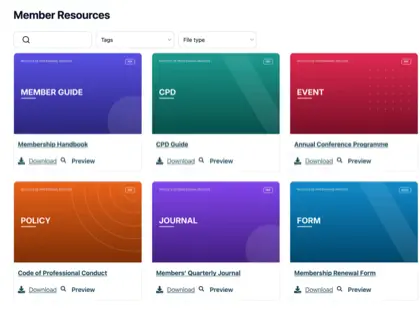
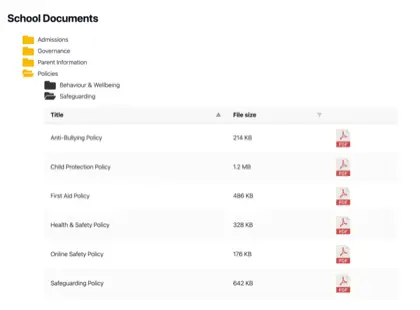
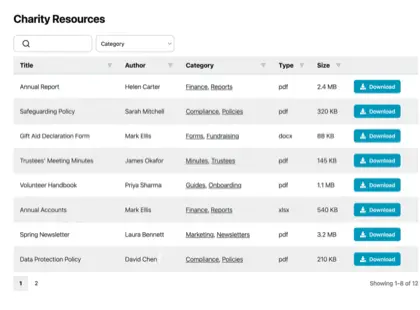
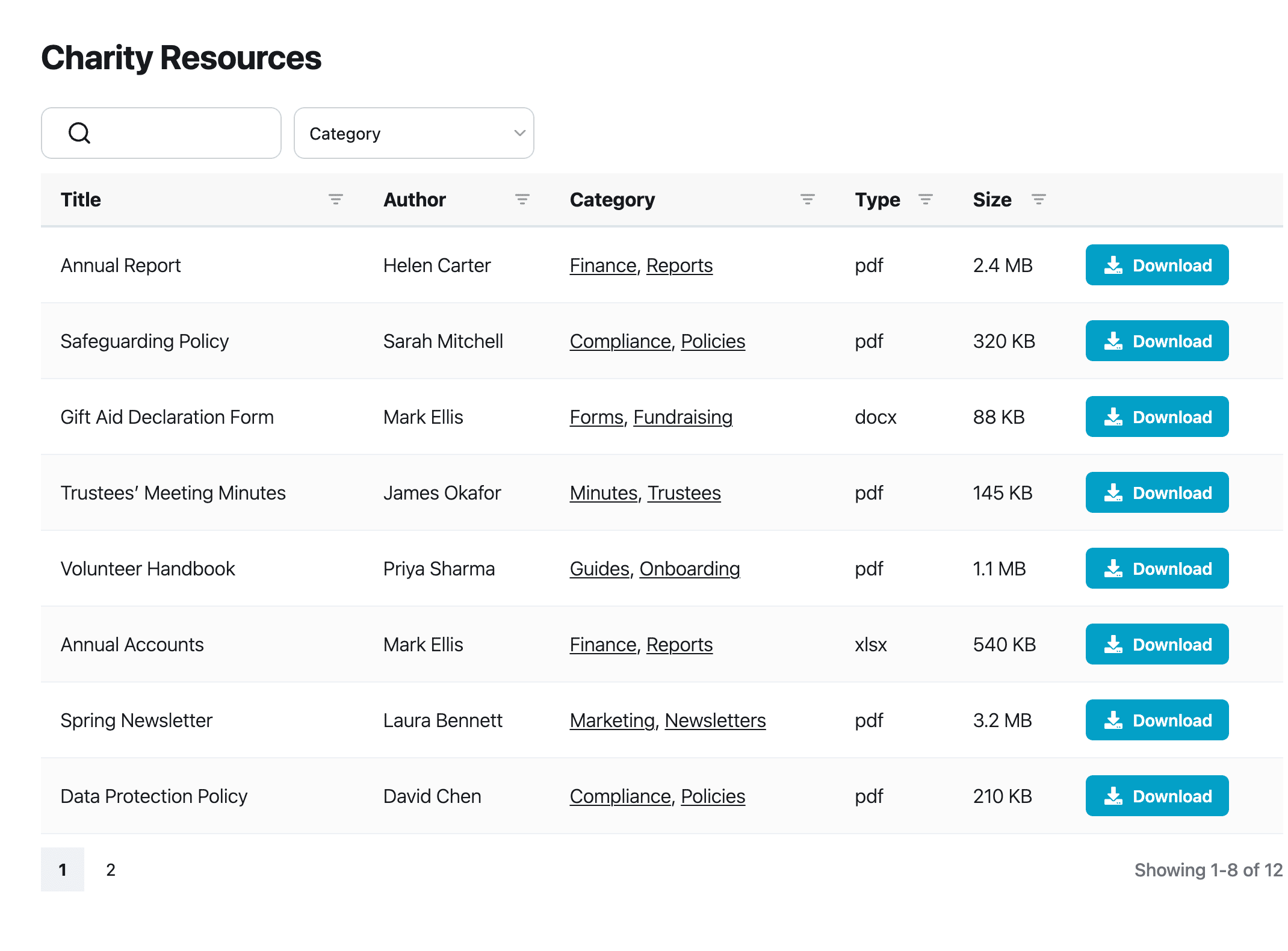
You paste the folder’s share link into a document category. Every file then becomes a searchable, downloadable document on your own site. Here’s the kind of library you end up with:
In this article I’ll walk through all three of your options:
- What a plain share link can and can’t do.
- The Dropbox Embedder, which needs a developer.
- Folder sync with Document Library Pro, the no-code route.
If you’d rather get started straight away, jump to the setup instructions.
Dropbox embed options compared
Here’s a quick comparison of the three routes. I’ll go through each one in detail below.
| Link di condivisione Dropbox | Dropbox Embedder | Document Library Pro folder sync | |
|---|---|---|---|
| Files appear on your own site | No, visitors go to dropbox.com | Yes, in a preview panel | Yes, as part of your website |
| Configurazione | Copy and paste a link | Register a Dropbox app and add code | Incolla il link dell’cartella condivisa |
| Technical skills needed | None | Developer required | None |
| Ricerca e filtri | Only on dropbox.com | No | Instant search, category filters and more |
| Look and feel | Dropbox’s | Dropbox’s | Matches your website |
| Stays up to date | Sì | Sì | Yes, daily sync plus ‘Sync Now’ |
| Ideale per | Sending someone a folder now and then | Developers who need a quick preview | A browsable library your visitors use every day |
What Dropbox offers out of the box
Dropbox has no native way to embed a browsable folder on a public website. Its built-in sharing feature is the share link. You create a link that anyone can view, then add it to a page or menu on your site. When visitors click it, the folder opens on dropbox.com in a new tab:
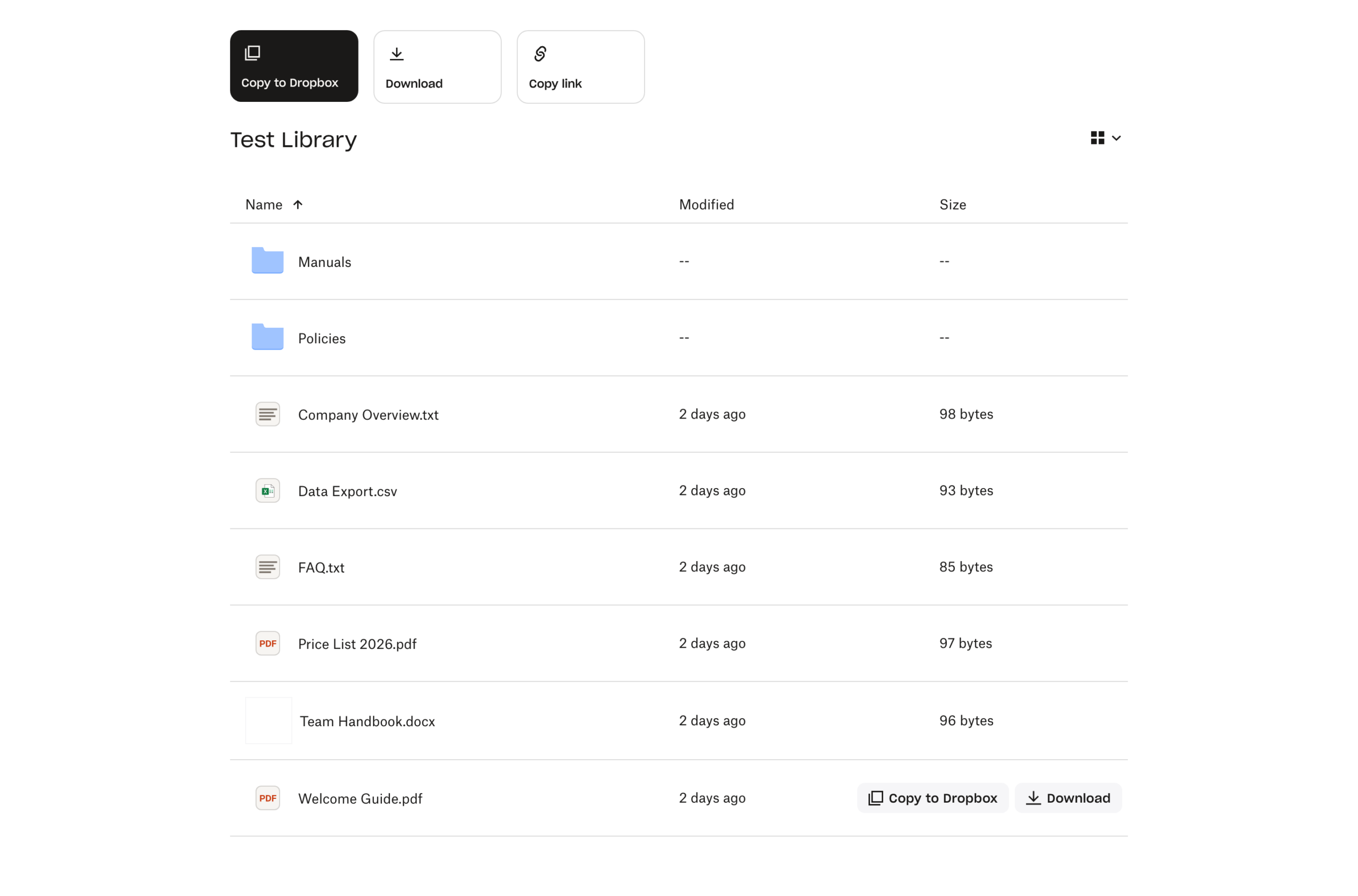
A share link is fine for handing over the occasional file. However, it is a link rather than an embed. Your visitors leave your website and land in Dropbox’s interface. Your branding and navigation are gone.
Forcing the issue with an iframe doesn’t work either. Dropbox tells browsers not to load its pages inside other websites. An iframe pointing at a Dropbox folder simply stays blank.
The developer option: The Dropbox Embedder
Dropbox does provide one official embed tool, called the Dropbox Embedder. It is a JavaScript component that displays a preview of a shared folder inside your web page. Visitors can browse the contents without leaving your site.
The Embedder was built for developers rather than website owners. To use it, you need to do all of the following:
- Create a Dropbox app in the Dropbox App Console.
- Generate an app key for it.
- Add your website’s domain to the app’s list of allowed domains.
- Add the Embedder’s JavaScript code to your page, including the app key and the folder’s share link.
Even with all of that in place, the result is a Dropbox-styled preview panel. You can’t restyle it to match your website. Visitors can’t search the files, and clicking one still takes them through to dropbox.com. Here’s what it looks like on a page:
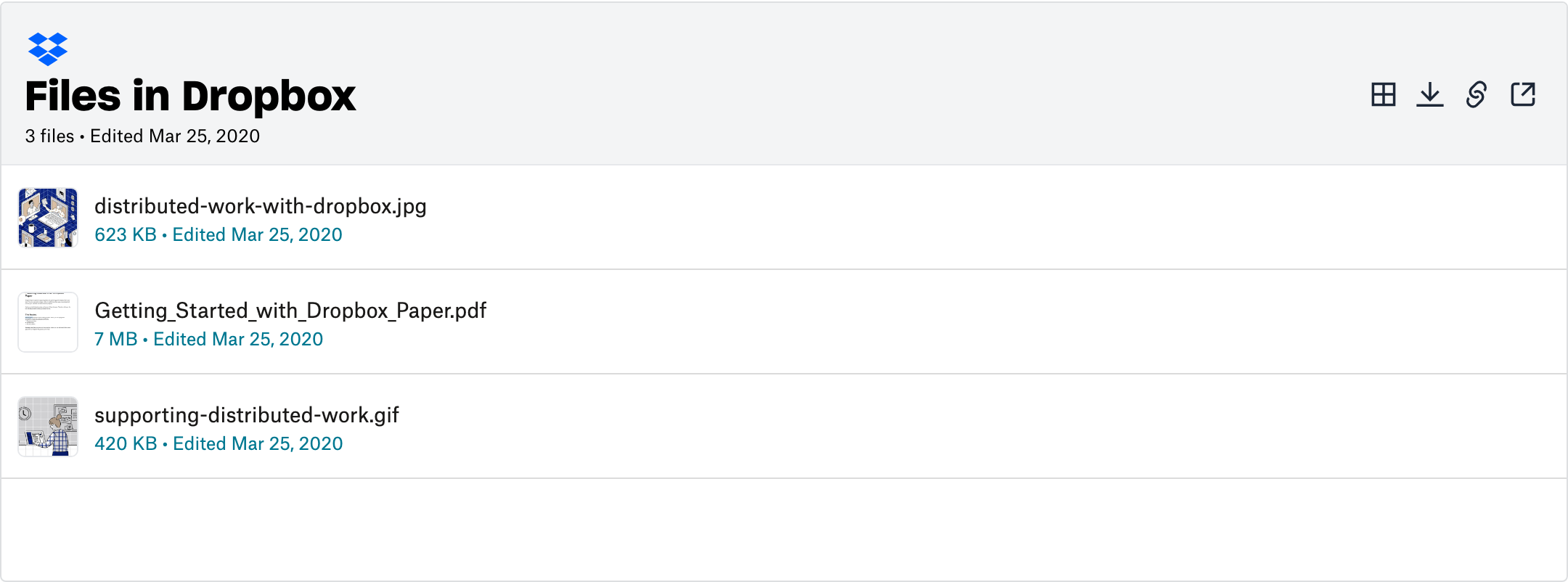
If you have a developer on hand and only need a small preview, the Embedder does the job. If you want the folder to feel like part of your website, syncing it into a libreria di documenti is a much better fit. You don’t need any technical skills for that route, and I’ll walk you through it next.
How to embed a Dropbox folder with Document Library Pro
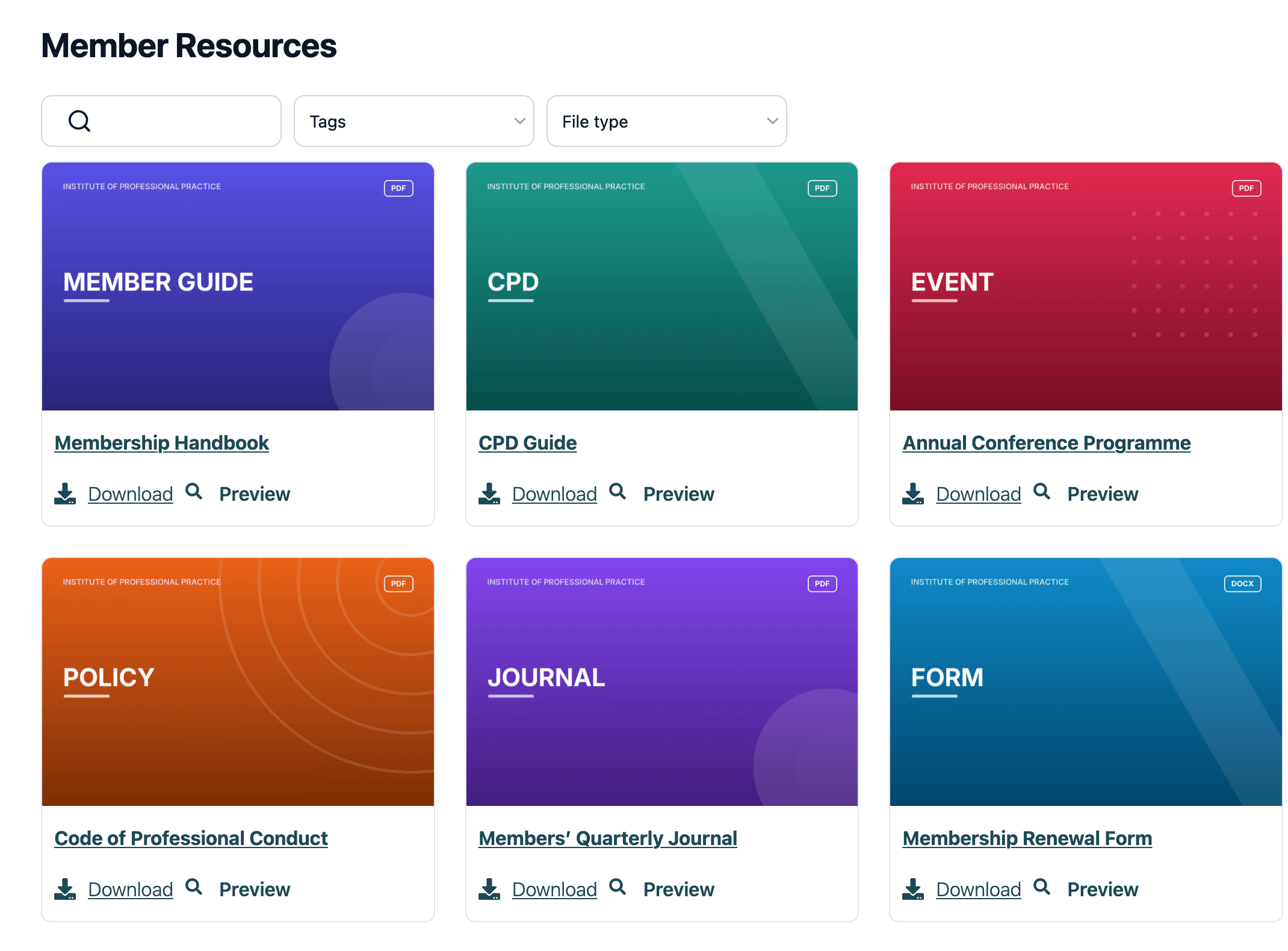
We built Document Library Pro to publish documents as a polished library on any website. Folder sync is the feature we added for exactly this situation. Rather than putting Dropbox’s interface on your page, it turns your folder into native content on your own site.
Every file in the folder becomes a document in your library. Your visitors can then:
- Search the library instantly as they type.
- Filter by category.
- Preview files without downloading them.
- Download files individually, or select several and save them as a zip.
Subfolders become subcategories, so an organized Dropbox folder arrives as an equally organized library.
Istruzioni di configurazione
There are no API keys to create, no Dropbox app to register and no code to add. Document Library Pro only needs the folder’s share link. Here’s the whole process:
- Get the folder’s share link. In Dropbox, hover over the folder and click ‘Share’. Create a link that ‘Anyone with this link can view’, then click ‘Copy link’.
- Paste the link into a document category. Go to Documenti → Categorie in your library admin. Create a new category, or open an existing one with ‘Edit’. Paste your link into the ‘Sync with a cloud folder’ field.
- Click ‘Add New Category’, or ‘Update’ if you edited an existing one. The first sync starts right away, and you can watch its progress in the ‘Cloud Sync’ column. The folder sync documentation covers each step in more detail.
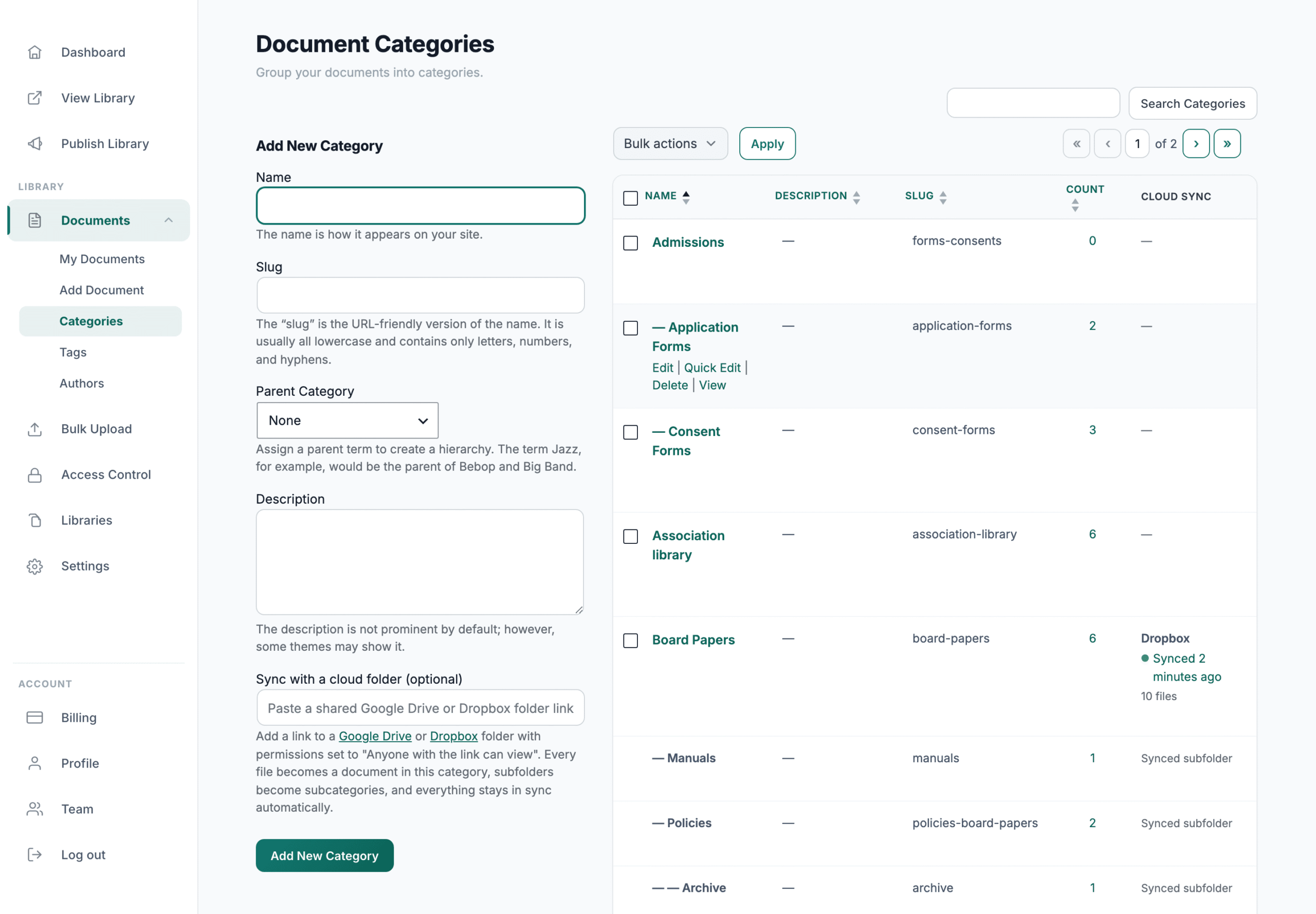
The screenshot above shows a ‘Board Papers’ folder that holds ten files across three levels of subfolders. Every level arrives as a matching subcategory, and there is nothing to rearrange afterwards. Your own folder structure will come across in exactly the same way.
Just double-check the link’s permission before you paste it. A link that isn’t set to ‘Anyone with this link can view’ won’t sync.
From then on, the folder stays in charge of the category. When you change a file in Dropbox, your library updates to match at the next daily sync. If you can’t wait, click ‘Sync Now’ for an instant update. Synced documents are read-only in your library admin, because the folder is the source of truth.
We also designed the sync to fail safely. It only ever reads from your folder, and it never edits or deletes anything in your Dropbox. If the folder becomes unreachable, your library keeps all of its documents. You just see an error until the next successful sync.
One limitation to be aware of: Folder sync only works with folders shared as ‘Anyone with this link can view’. That was a deliberate choice, because a plain share link means there is nothing to authorize and nothing to expire or break.
However, anyone who discovers the link can open the folder on Dropbox itself. For files that must stay completely private, folder sync is the wrong choice. It’s safer to add those documents to your library directly.
Cosa vedono i tuoi visitatori
On the front end, your Dropbox files appear as a document library that matches the rest of your website. There is no Dropbox branding anywhere, and nobody leaves your site to open a file. A visitor who needs a specific policy or form can find it in seconds.
As well as the table and grid layouts shown earlier, there’s a folder view that mirrors your Dropbox folder structure exactly:
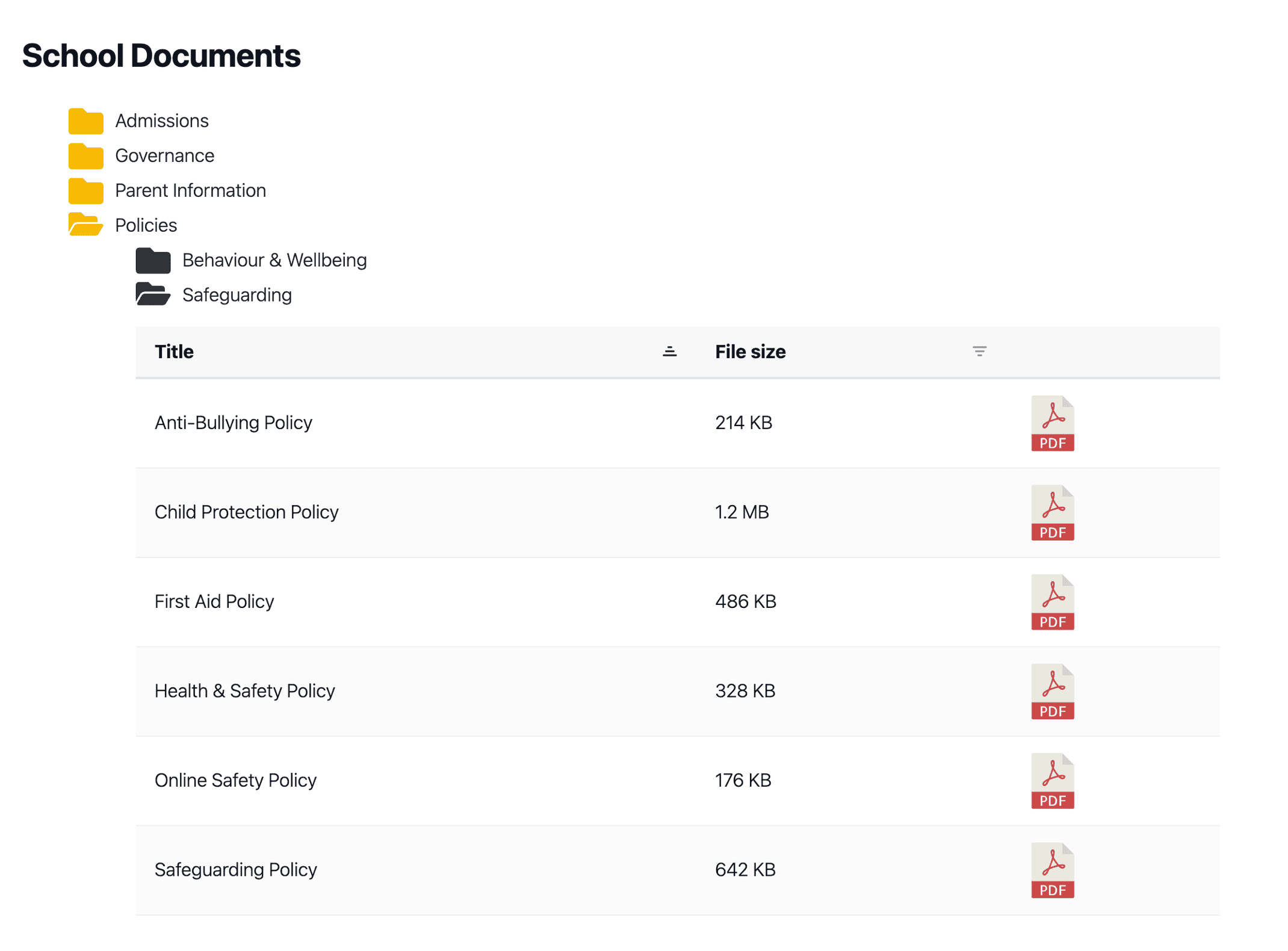
You can display Dropbox files on any website this way. The library embeds into WordPress, Shopify, Wix, Squarespace, Webflow and almost any other platform. It can also run as a standalone hosted library on its own web address.
If some of your documents are for a closed audience, you can protect them. I’ve covered the options in my guide to condivisione sicura documenti.
Dropbox embed FAQs
Can I embed a Dropbox folder on my website without coding?
Yes. Document Library Pro embeds a Dropbox folder on any website using just the folder’s share link. There are no apps to register, no API keys to create and no code to add.
Why won’t a Dropbox folder load in an iframe?
Dropbox blocks its pages from loading inside other websites. This is a standard security measure, so the iframe stays empty however you configure it. To display Dropbox files on your website, you need either the Dropbox Embedder or a sync tool such as Document Library Pro.
Can visitors see the rest of my Dropbox account?
No. Folder sync reads only the folder whose link you pasted, and nothing else in your account. However, anyone who finds the share link can open that folder on dropbox.com. Only sync content that’s suitable for your library’s audience.
What happens when I add or remove files in the folder?
Your library updates to match the folder. New files become new documents, deleted files are removed, and changed files are refreshed. This happens automatically every day, or on demand when you click ‘Sync Now’.
Can I embed a Google Drive folder in the same way?
Yes. Folder sync works in exactly the same way with Google Drive. Paste the Drive folder’s share link into a category and the documents create themselves. You can even sync Dropbox and Google Drive folders into different categories of the same library. I’ve covered the details in a separate guide to displaying a Google Drive folder on your website.
Which platforms can I embed a Dropbox folder on?
Any platform that can display an embed, including WordPress, Shopify, Wix, Squarespace and Webflow. If you don’t have a website at all, Document Library Pro can host your library as a standalone site. If your site runs on WordPress, you can also compare the dedicated WordPress Dropbox plugins.
Turn a Dropbox folder into part of your website
Syncing your folder into Document Library Pro is the easiest way to embed a Dropbox folder on your website. It’s the only route that needs no developer. One pasted link gives your visitors a searchable, downloadable library on your own site, and it keeps itself up to date.
Inizia una free 14-day trial of Document Library Pro and your Dropbox folder can be live on your website in a few minutes.