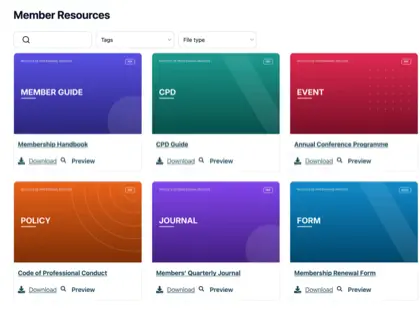
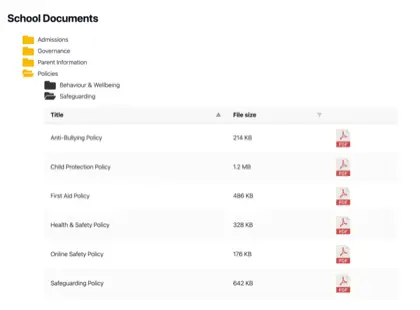
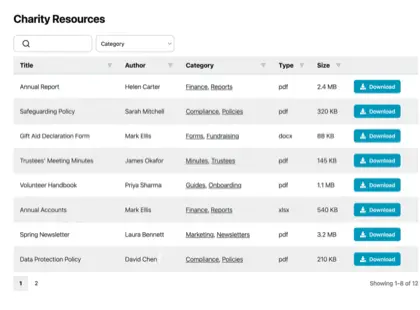
If your association’s MemberClicks website has slowly turned into a holding place for PDF links, you’re in familiar territory. Board packets, bylaws, forms, minutes, member resources and sponsor documents all need somewhere to live.
At first, a few links on a page feel manageable. Then the page gets longer, the file names get less helpful, and members start emailing the office because they cannot find the document they know is there.
The answer is to keep MemberClicks as your website and membership system, and add a proper document library inside it. That might sound technical, but it is simpler than it sounds.
In this article, I’ll cover the main points.
- What MemberClicks gives you for documents out of the box.
- Why plain file links stop working once your library grows.
- How to create a searchable MemberClicks Document Library.
- Which route to use in MC Pro and MC Trade.
What MemberClicks gives you for documents
Before you add anything new to MemberClicks, it helps to see where the document problem actually starts. The short version is that MemberClicks can publish files, but it does not turn a growing file collection into a searchable document library.
MemberClicks is association management software. It is built for the work that sits around membership: Member records, dues, renewals, events and email. If you run an association or chamber, that is exactly the center of the job.
It also gives you a website builder, but the route depends on which MemberClicks product you use. MC Pro, also called MC Professional, is for organizations whose members are individual people. MC Trade is for chambers and trade groups whose members are organizations.
For documents, the native options are fairly simple. You can upload a file and link to it from a page, which gives members a normal text link to click. On MC Trade Premium Website, you can also use a Media Document element, which displays one document in a box on the page with its own scrollbar.
Those options are fine when you only need to share a small number of files. Of course, a bylaws PDF on an About page does not need a full library around it. A single event packet can usually sit behind one link.
Where file links start to break
The problem starts when your documents become a collection instead of a one-off file. A page of blue links does not give members a way to search across documents. It does not give them category filters, sortable columns, document previews, or a way to download several files together.
That is how you end up with a resource page full of links named final_v3.pdf y updated-policy-approved.pdf. Staff know what they meant at the time. Members do not, so they email the office to ask where the right form or minutes packet is.
MC Pro does have reusable Widgets, which sounds like it might solve this. The catch is that MemberClicks says widgets have to be built by their design team. In practice, that means most staff cannot just create a new document library widget themselves when the resource page outgrows plain links.
That is not a flaw in what MemberClicks is built to do. After all, it is membership software first and foremost, and it does that job well. The solution is to use it with Document Library Pro - our own document library software, made for this specific job. Use it to create a MemberClicks document library and embed the library into your MemberClicks site. That way, your MemberClicks site can keep doing the membership work while we handle the document experience.
What a document library gives members that links cannot
A MemberClicks document library saves your members from browsing a long page and helps them to quickly find the right file.
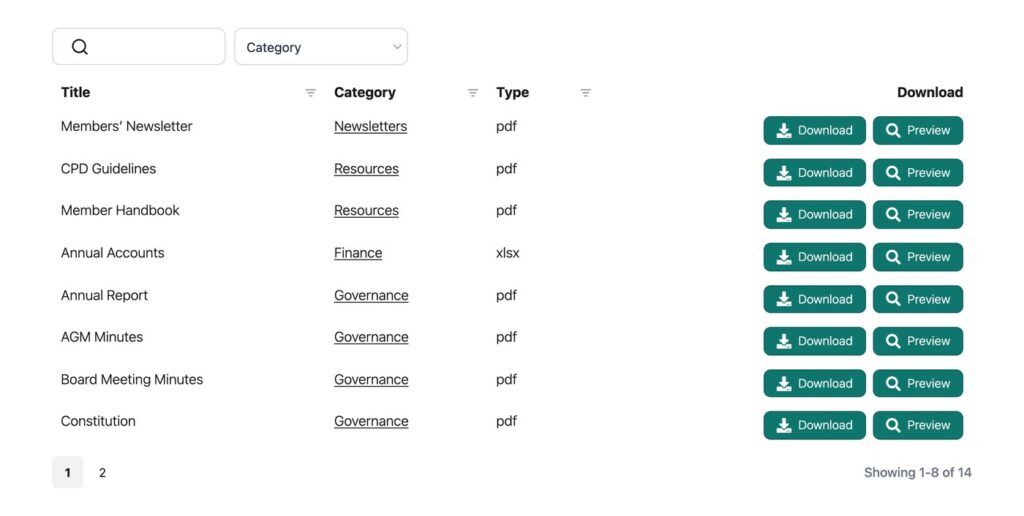
With Document Library Pro, members can use a search box to search document names and file details. It can also search inside the text of the files themselves. If someone remembers a phrase from a policy, they can search for that phrase instead of guessing the file name.
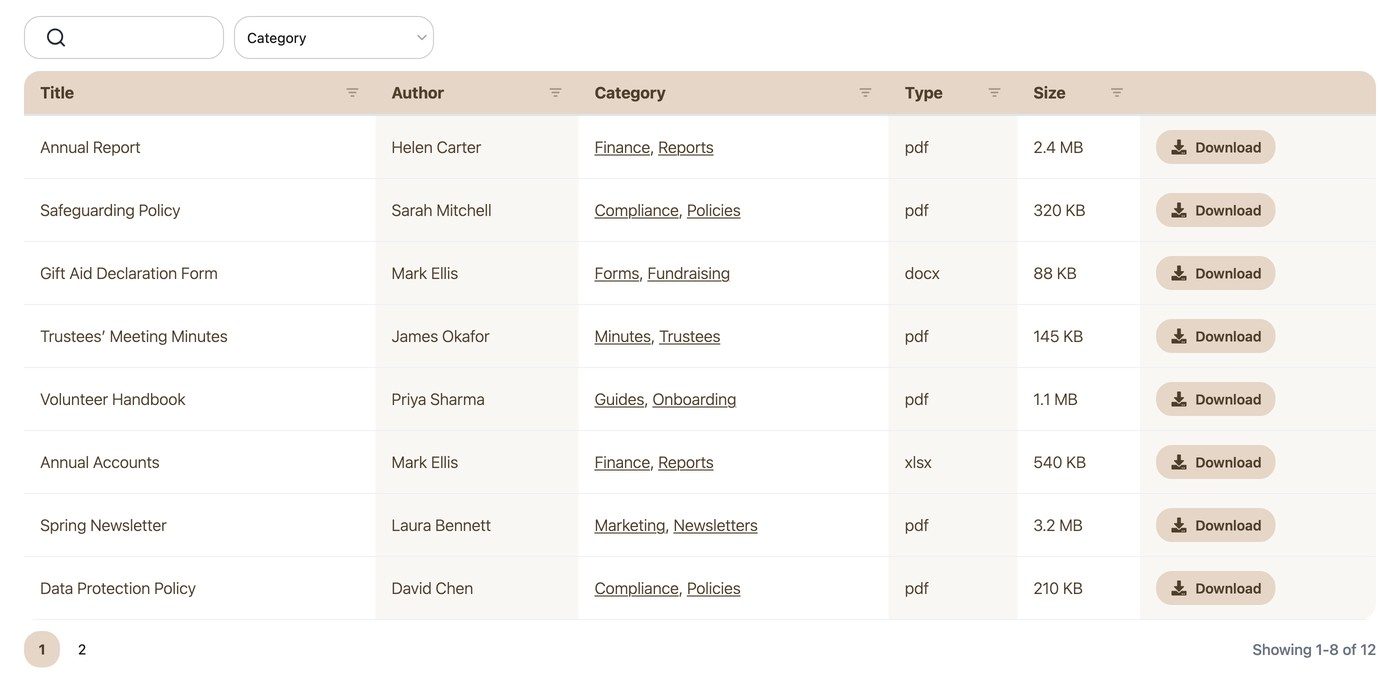
Filters and sortable columns make the library easier to scan once it grows. A member can narrow the list by category, then sort by date, title, or another field that matters to your organization. This is much more usable than asking them to read every link on a resource page.
Document previews make things even easier for your members. Members can open a vista previa de documentos directly on the library page before they download it, which helps them confirm that they have the right file. When they need more than one document, they can select several files and download them together as one zip file.
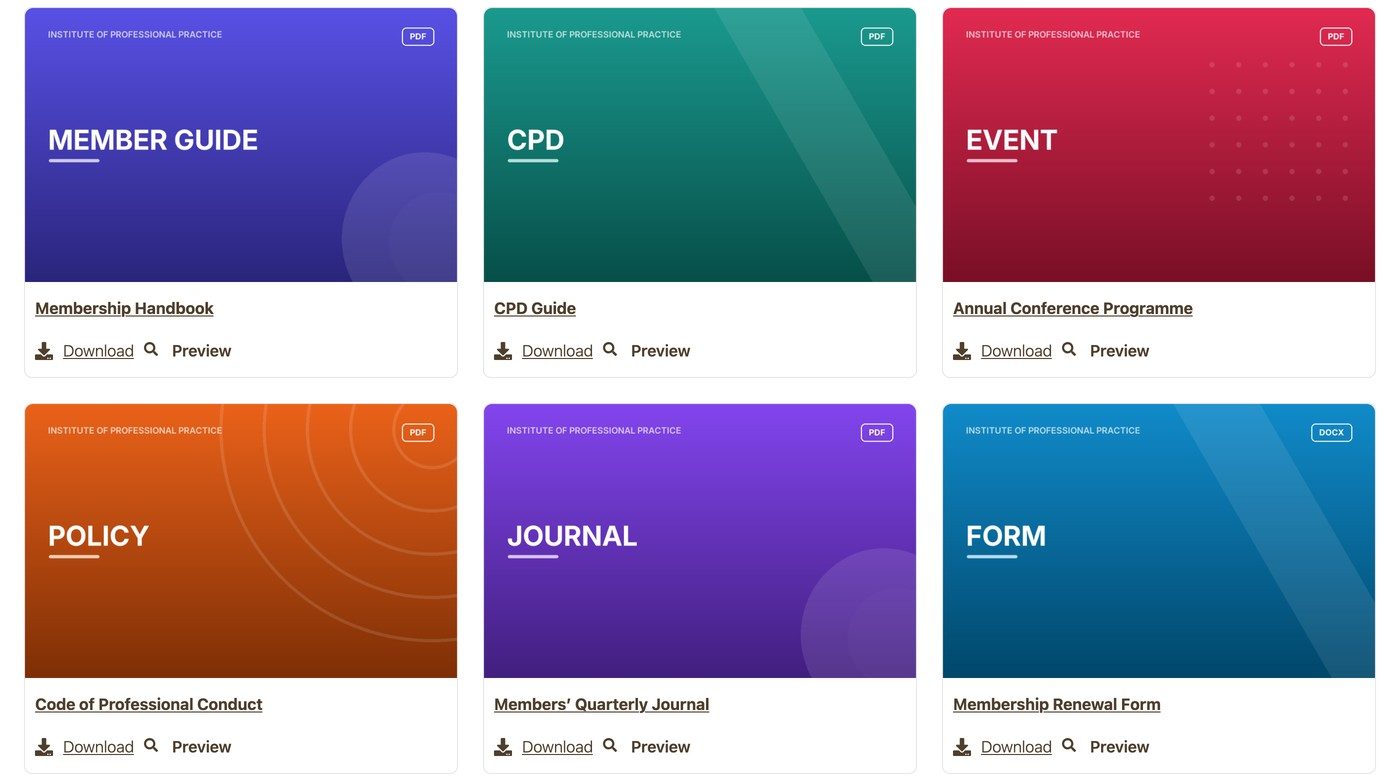
For staff, the same structure helps keep the library up-to-date. Use the version control feature to manage updates to existing documents without breaking any old links or displaying confusing filenames. Use expiry dates to remove time-limited documents from public view.
The built-in download tracking shows which documents your members are actively downloading from the library.
How to create a MemberClicks document library
First, sign up to Document Library Pro and use it to build your library and add documents to it. Either upload these directly to Document Library Pro, or sync it with wherever you already store your documents such as Dropbox or Google Drive.
Once you’ve done that, go to the Publicar biblioteca page and grab your embed code, which might look something like this:
<iframe src="https://your-library.documentlibrary.app/?dlp_embed=1" title="Document library" style="display:block;width:100%;border:0;height:600px;" loading="lazy"></iframe>
<script src="https://your-library.documentlibrary.app/?dlp_embed_resize=1" async></script>
MC Trade: Use the Embed Code element
- Open the page where you want the document library to appear.
- In the build toolbar, add the Embed Code .
- Paste both lines of the embed code into the element.
- Save the page and publish your changes.
- Open the live page and test the library as a member would use it.
MC Pro: Add the library in an article
- Ir a Website > Articles.
- Abre el artículo donde debe aparecer la biblioteca de documentos.
- Usa el HTML button in the editor toolbar.
- Paste the embed code into the HTML view.
- Save the article and view it on the live site.
The document library then appears inside your existing MemberClicks site.
To add different document libraries to different MemberClicks pages, use the “Libraries” section of Document Library Pro to create as many libraries as you like. You can then get a different embed code for each one.
For a fuller walkthrough, use our guía paso a paso.
How to decide what goes in the first library
The best first library is usually smaller than the shared drive. The common mistake is trying to migrate every file before anyone can use it.
Start with the documents that members ask your office for the most. If they often request board minutes, renewal forms, event packets, or policy documents, add those files to the document library first. You can add more once the basic structure is working.
Categories should match how members ask for things, not how your internal drive is organized. After all, a folder name that makes sense to staff may not mean much to a new member. Use the words that members already use in email requests and phone calls.
Generally, it’s better to use a small number of broad categories rather than a deep tree. If people have to click through several levels before they see a document, the library starts to feel like an old file system. Broad categories also make it easier for staff to keep the library tidy.
File names matter as much as categories. Name documents the way a person would search for them. A member is more likely to search for “board meeting minutes July 2026” than for a short internal code or a draft file name.
How to keep member-only documents private
Asociaciones often need some documents to stay public and other documents to stay limited. That might include board materials, member handbooks, committee files, or resources intended only for paid members.
If your MemberClick site is only available to logged in members, then your documents will naturally be protected as part of that. If you want to show some documents to specific groups of members only, then you can also password protect individual libraries within your MemberClick site. Do this in the Control de acceso page of Document Library Pro.
A better document library inside MemberClicks
You do not need to leave MemberClicks in order to give members a better way to find documents. Keep MemberClicks for your website and membership work, then add Document Library Pro where a searchable library is needed.
That gives staff a cleaner way to publish files, and it gives members a calmer way to find the right document without asking the office. To add a hosted document library to your MemberClicks site, start a Document Library Pro free trial today.