





Mit dem Advanced-Tarif von Document Library Pro kannst du deine Dokumentbibliotheken mit einem Passwort schützen. Nur Personen mit dem Passwort können sie öffnen. Das eignet sich für einen internen Dokumentbereich, eine private Dateisammlung neben einer öffentlichen Bibliothek oder jeden Download-Bereich, der nicht öffentlich sichtbar sein soll.
Alles verwaltest du auf der Zugriffskontrolle Seite in deinem Dashboard. Es gibt keinen WordPress-Adminbereich, in den du dich einloggen musst, und keinen Code oder Shortcodes, die du einfügen musst.
Dieser Artikel behandelt eine Bibliothek schützen, direkte Dateilinks blockieren, den Text im Passwortformular und wie lange der Zugriff gültig bleibt.
Eine Dokumentenbibliothek schützen
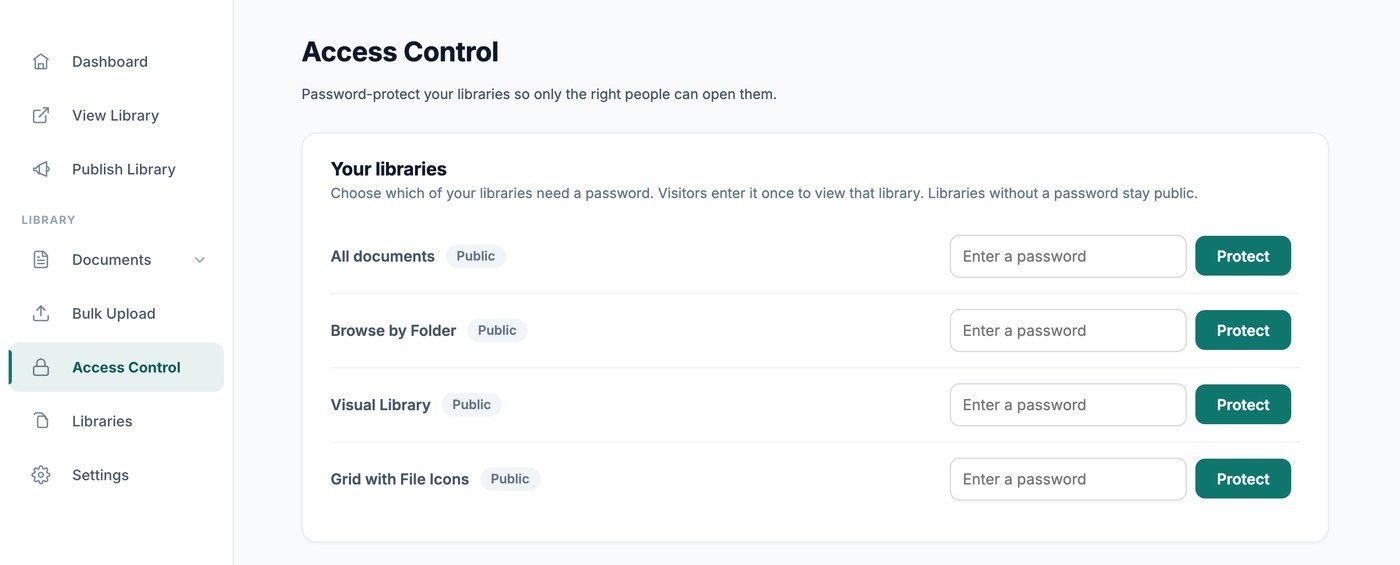
Öffne Access Control. Die Deine Bibliotheken Karte zeigt Alle Dokumente oben an, gefolgt von allen Bibliotheken, die du erstellt hast. Jede zeigt einen Status von Öffentlich oder Passwortgeschützt.
- Suche die Bibliothek, die du schützen möchtest.
- Gib ein Passwort in das Feld ein.
- Klicken Schützen.
Diese Bibliothek ist jetzt privat. Verwende Ändern um später ein neues Passwort festzulegen, oder Entfernen um die Bibliothek wieder öffentlich zu machen.
Jede Bibliothek wird einzeln geschützt. Wenn du deine Bibliothek All documents schützt, werden die anderen nicht gesperrt. So wählst du genau aus, welche ein Passwort brauchen. Bibliotheken ohne Passwort bleiben öffentlich.
Deine veröffentlichte Bibliothek zeigt dir immer, was deine Besucher sehen, auch wenn du in deinem Konto angemeldet bist. So kannst du deine Arbeit leicht prüfen. In deinem Dashboard kannst du weiterhin jedes Dokument sehen und verwalten.
Ein Passwort schützt die Bibliothek, nicht das Dokument
Ein Bibliothekspasswort steuert, wer diese Bibliothek öffnen kann. Es sperrt kein einzelnes Dokument überall dort, wo es erscheint. Ein Dokument, das auch in einer öffentlichen Bibliothek liegt, bleibt dort also öffentlich.
Zwei Dinge halten private Dokumente aus einer öffentlichen Ansicht heraus:
- Einbettung - Bette die konkrete Bibliothek ein, die du möchtest, und verwende den eigenen Einbettungscode dieser Bibliothek. Verwende nicht den Einbettungscode für alle Dokumente, wenn eines deiner Dokumente privat ist, denn diese Ansicht listet jedes Dokument auf.
- Deine Bibliothekswebsite - Standardmäßig listet die Startseite alle deine Dokumente auf. Lege auf der Seite Publish Library Startseite stattdessen auf eine bestimmte Bibliothek fest. Siehe deine Bibliothek veröffentlichen.
Direkte Dateilinks blockieren
Ein Bibliothekspasswort steuert, wer die Bibliothek öffnen kann. Um die Dateien selbst zu schützen, aktiviere Stop people downloading your uploaded files from a direct link in der Direkte Dateilinks blockieren Karte.
Deine Dateien werden dann im Hintergrund in einen privaten Speicher verschoben, und die Seite zeigt den Fortschritt an. Du kannst die Seite verlassen, während der Vorgang läuft. Deine Bibliothek sieht gleich aus und lädt genauso schnell. Die Dateien werden zurückverschoben, wenn du die Option später ausschaltest.
Bevor du die Option einschaltest, solltest du ein paar Dinge wissen:
- Es ist eine Einstellung für dein gesamtes Konto und gilt für jede Datei, die du hochgeladen hast.
- Die Adresse einer Datei zu kopieren und in einen Browser einzufügen, funktioniert dann nicht mehr.
- Wenn eine Bibliothek ein Passwort hat, geben Besucher es ein, bevor sie die Dateien herunterladen können.
- Wenn eine Bibliothek kein Passwort hat, kann jeder, der die Bibliothek sehen kann, die Dateien herunterladen. Die Dateiadressen können nicht erraten, geteilt oder von Google indexiert werden.
- Das gilt für die Dateien, die du zu Document Library Pro hochlädst. Dateien, die bei einem anderen Dienst liegen, zum Beispiel Dropbox oder Google Drive, folgen den Freigabeeinstellungen dieses Dienstes.
- Jeder, der eine Datei herunterladen darf, kann sie danach trotzdem teilen.
Passwortformular
Besucher einer geschützten Bibliothek sehen ein Passwortformular in deinem eigenen Branding. Weiter unten auf der Access Control-Seite legt der Passwortformular Abschnitt den Text fest:
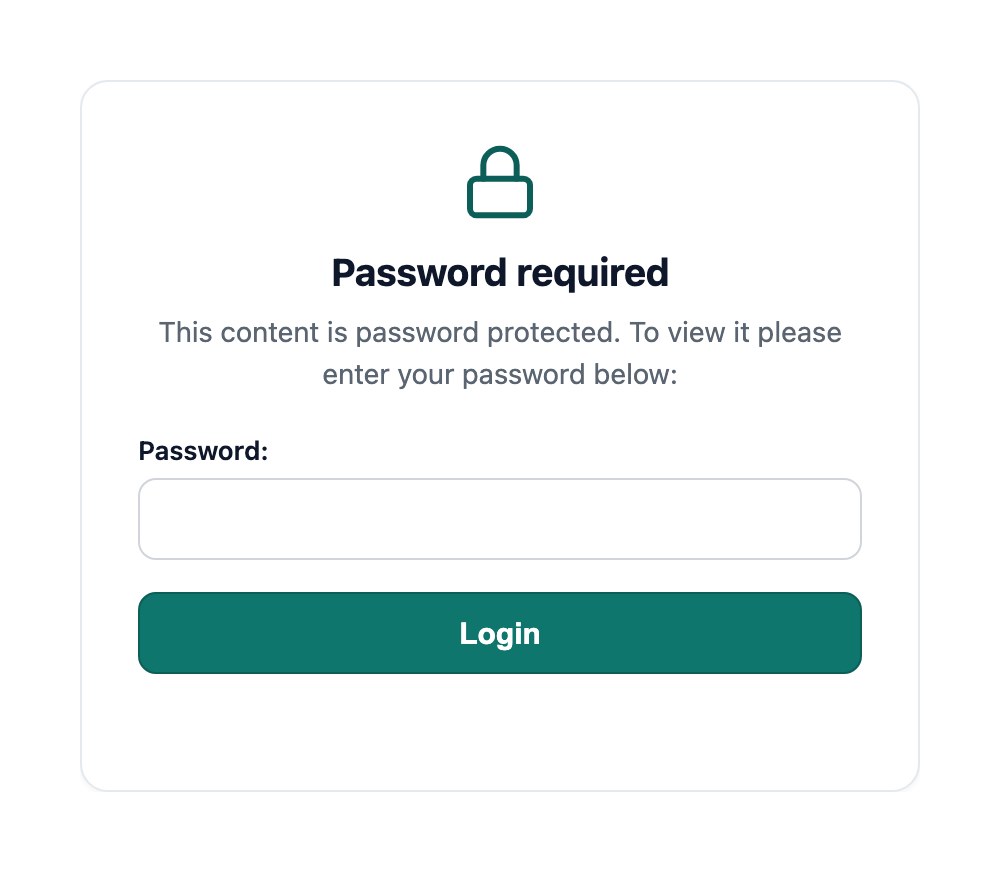
- Nachricht im Passwortformular - Die Nachricht, die im Formular angezeigt wird. Du kannst hier HTML verwenden.
- Passwortbeschriftung - Die Beschriftung neben dem Passwortfeld.
- Platzhalter verwenden? - Zeigt die Beschriftung im Feld statt daneben.
- Text des Passwortbuttons - Der Text auf dem Button, zum Beispiel Login.
- Passwortablauf - Wie viele Tage ein Besucher freigeschaltet bleibt. Der Standard ist 10 Tage.
Die Farben und die Schrift des Formulars stammen aus dem Tab Branding deiner Einstellungen.
Wie lange der Zugriff gilt
Ein Besucher gibt das Passwort einmal ein, und sein Browser bleibt für die Anzahl der Tage freigeschaltet, die in Passwortablauffestgelegt ist. Danach wird er erneut nach dem Passwort gefragt. Es gibt keinen Abmelden-Button. Verkürze deshalb den Ablaufzeitraum, wenn die Abfrage öfter erscheinen soll.
Wie viele Passwörter kann ich verwenden?
Es gibt kein festes Maximum. Füge so viele Passwörter hinzu, wie du brauchst. Ein Besucher kann die Bibliothek mit jedem davon entsperren. Das ist praktisch, wenn verschiedene Gruppen ihr eigenes Passwort haben.
Jedes Mal, wenn jemand ein Passwort sendet, prüft deine Bibliothek es gegen alle gespeicherten Passwörter. Dutzende sind kein Problem. Wenn sich Hunderte ansammeln und das Entsperren langsam wirkt, kürze die Liste auf die Passwörter, die du noch verwendest.
Vor Suchmaschinen verborgen
Geschützte Bibliotheken werden automatisch aus Suchergebnissen herausgehalten, mit einer noindex-Anweisung, die Suchmaschinen sagt, sie nicht aufzunehmen. Siehe werden meine geschützten Dokumentbibliotheken vor Suchmaschinen verborgen?
Andere Möglichkeiten, den Zugriff zu steuern
- E-Mail-Adressen vor dem Download erfassen fragt Besucher im Advanced-Tarif nach ihren Daten statt nach einem Passwort.
- Wenn du deine Bibliothek auf einer Seite eines Intranets oder einer Mitgliederseite einbettest, die bereits ein eigenes Login hat, liegt deine Bibliothek hinter diesem Login.
- Teammitglieder hinzufügen behandelt den Zugriff auf dein Dashboard, nicht den Zugriff auf deine Dokumente.