





Filter in der gehosteten Version von Document Library Pro fügen Filter-Dropdowns hinzu, mit denen Besucher die Dokumente durch Auswahl einer Option eingrenzen. Filter können über deiner Bibliothek, in den Spaltenüberschriften oder an beiden Stellen erscheinen. Für deine Hauptbibliothek legst du die Filter im Tab Suche fest. Für eine von dir erstellte Bibliothek nimmst du die Einstellung im Schritt Steuerelemente des Bibliothekseditors vor.
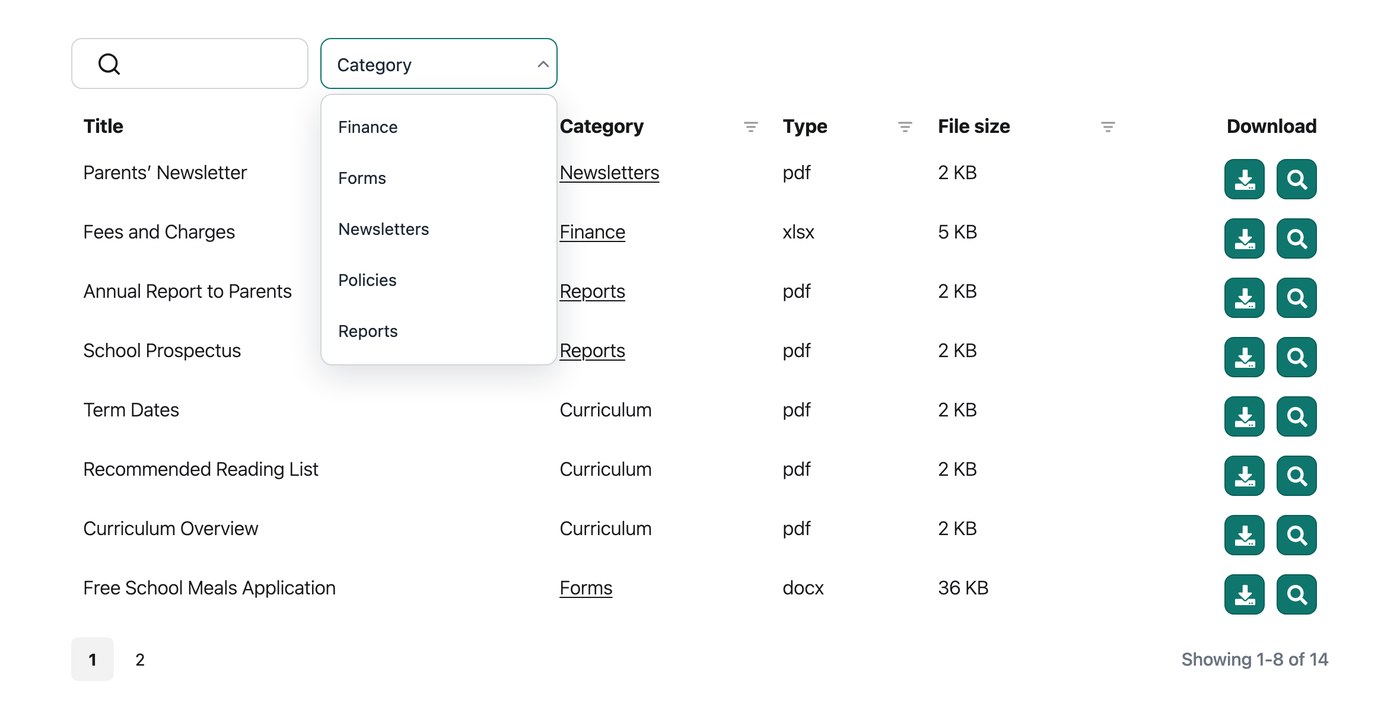
Verfügbare Filter
Du kannst Filter-Dropdowns für Folgendes erstellen:
- Kategorien.
- Schlagwörter.
- Dokumentautor.
- Dateityp.
So fügst du Filter hinzu
Du fügst Filter im Library Builder hinzu, wenn du eine Bibliothek erstellst oder bearbeitest.
Sobald du Filter-Dropdowns aktivierst, erscheint ein Drag-and-drop-Filter-Builder:
- Verwende das Dropdown “Filter auswählen”, um Filter wie Kategorien, Schlagwörter oder eine eigene Taxonomie hinzuzufügen.
- Verwende das Stiftsymbol, um jeden Filter umzubenennen.
- Ziehe die gepunkteten Griffe links, um die Filter neu anzuordnen. Der Filter ganz oben in der Liste erscheint links (oder rechts bei Sprachen von rechts nach links).
Filter positionieren
Standardmäßig erscheinen Filter über der Bibliothek. Mit der Option Filterpositionen im Tab Suche kannst du sie über der Bibliothek, in den Spaltenüberschriften oder an beiden Stellen anzeigen:
- Filter-Dropdowns über der Tabelle anzeigen. Zeigt die Filter in einer Zeile über der Bibliothek an.
- Filter in Spaltenüberschriften anzeigen. Zeigt einen Filter innerhalb der Überschrift jeder filterbaren Spalte an.
Filter in Spaltenüberschriften
Wenn du Filter in den Spaltenüberschriften anzeigst, zeigen Spalten, die Filter unterstützen (zum Beispiel Kategorien, Schlagwörter und Autoren), ein Filtersymbol in der Spaltenüberschrift an. Besucher können auf das Symbol klicken, um ein Dropdown zu öffnen und die Bibliothek zu filtern, ohne die Spalte zu verlassen, die sie gerade ansehen.
Wenn ein Filter 9 oder mehr Optionen hat, erscheint oben im Dropdown ein Suchfeld, damit Besucher schnell die gewünschte Option finden. Bei kürzeren Listen ist das Suchfeld ausgeblendet, da es nicht benötigt wird.
Mehrfachauswahl-Filter
Standardmäßig erlaubt jeder Filter nur eine Auswahl. Aktiviere im Tab Suche die Option Mehrfachauswahl für Filter, damit Besucher in jedem Filter mehrere Optionen gleichzeitig auswählen können.
Aktive Filter
Aktiviere im Tab Suche die Option Aktive Filter, um über der Bibliothek eine Zusammenfassung der derzeit angewendeten Filter anzuzeigen. Besucher sehen dadurch immer, welche Filter aktiv sind und welche Inhalte sie betrachten.
Filteranzahlen
Aktiviere im Tab Suche die Option Filteranzahlen, um neben jeder Option in den Filter-Dropdowns die Anzahl der passenden Dokumente anzuzeigen. Besucher sehen vor der Auswahl, wie viele Ergebnisse jede Option liefert.
So benennst du Filter um
Um einem Filter eine eigene Überschrift zu geben, klicke im Filter-Builder auf sein Stiftsymbol und gib deine gewünschte Formulierung ein. Wenn du keine festlegst, verwendet die Überschrift den passenden Feldnamen in der Bibliothek und, falls es keinen gibt, den Namen der Taxonomie selbst.
Einschränkungen
Filter werden nicht unterstützt in Ordneransicht. Wenn du Filter über der Bibliothek benötigst, lass Ordner deaktiviert.
FAQ
Kann ich die Filter anzeigen, bevor die Bibliothek geladen wird?
Nein. Die Filter sind dafür gedacht, die Dokumentliste zu verfeinern, nicht sie vor dem ersten Laden zu filtern.
Kann ich Kategorien und Unterkategorien als separate Filter auflisten?
Kategorien und Taxonomien erscheinen in einem einzelnen Dropdown. Die Liste ist verschachtelt und hierarchisch, sodass Besucher sehen können, welche übergeordnete Kategorien und welche untergeordnete Kategorien sind.
Kann ich die Reihenfolge der Dropdown-Elemente steuern?
Filter-Dropdowns werden alphabetisch sortiert. Wenn die alphabetische Reihenfolge für deine Daten nicht passt, zum Beispiel bei Monaten, kannst du jedem Begriff Zahlen voranstellen, um die Reihenfolge zu steuern. Benenne Monatskategorien zum Beispiel “01 - Januar”, “02 - Februar” und so weiter.
Können Besucher mehr als eine Option pro Filter auswählen?
Ja. Aktiviere die oben beschriebene Option Mehrfachauswahl-Filter, dann können Besucher aus jedem Filter so viele Optionen auswählen, wie sie möchten.