





Document Library Pro alojado incluye varios elementos que puedes mostrar encima o debajo de la tabla para ayudar a los visitantes a buscar, ordenar y pasar de página por tus documentos. Para tu biblioteca principal, los activas y colocas en las pestañas Búsqueda y Advanced de tus ajustes. Para una biblioteca que hayas creado, los configuras en el paso Controles del Creador de bibliotecas.
Los elementos disponibles son:
- cuadro de búsqueda, el cuadro de búsqueda por palabra clave en la parte superior derecha de la tabla.
- Longitud de página, el selector “Mostrar x entradas”.
- Totales, el recuento de documentos de la biblioteca (por ejemplo, “50 documentos”).
- Paginación, los botones de paginación que aparecen debajo de una tabla de varias páginas.
- desplazamiento infinito, una alternativa a la paginación que carga más documentos a medida que los visitantes se desplazan.
- Botón Restablecer, que aparece por sí solo una vez que un visitante ha buscado o filtrado, y borra la búsqueda y los filtros.
- Pie de página, una fila opcional en la parte inferior de la tabla que repite las cabeceras de columna.
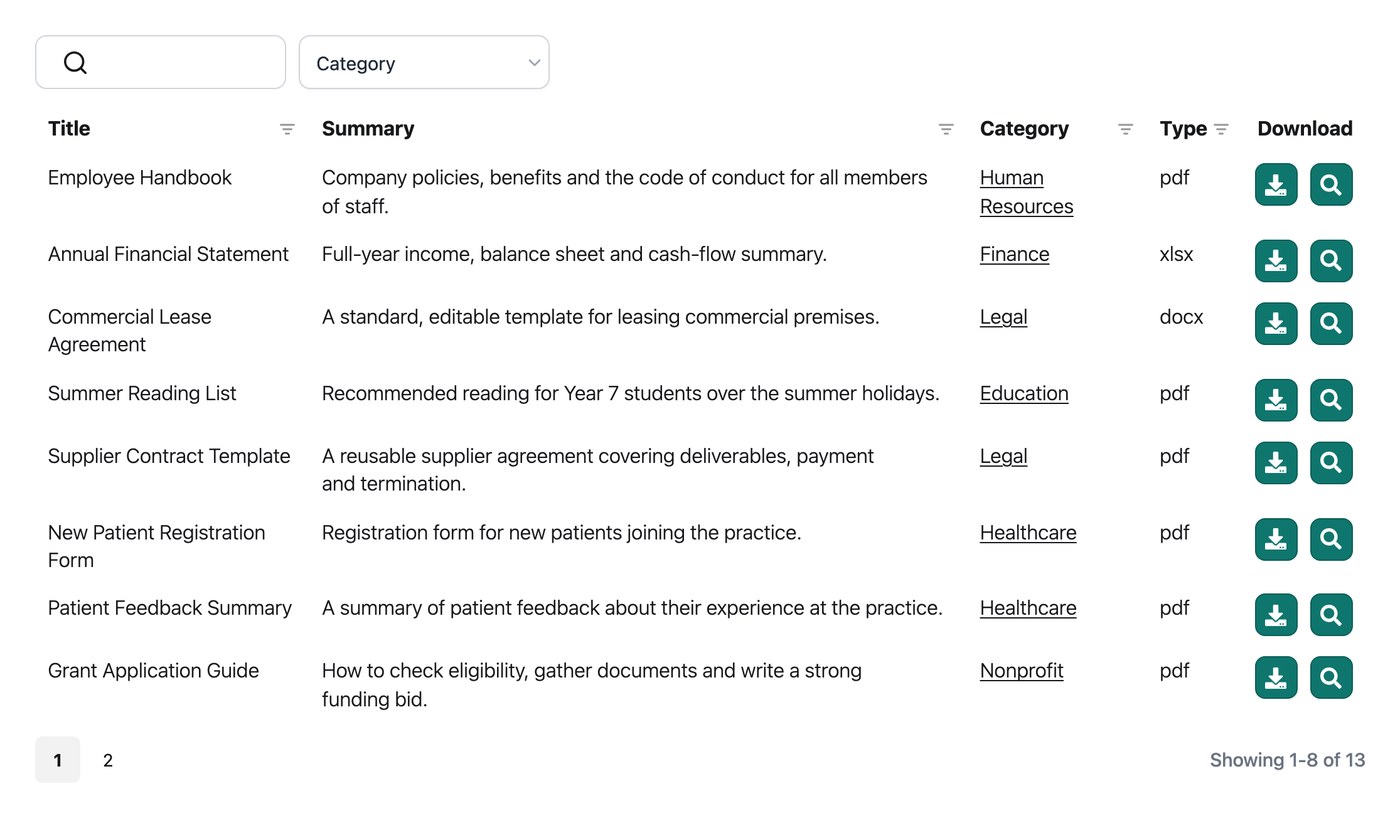
Mostrar cuadro de búsqueda
El cuadro de búsqueda permite a los visitantes filtrar la tabla por palabra clave. Aparece encima de la tabla, en la parte superior derecha, y puedes activarlo o desactivarlo en el Constructor de bibliotecas. Lee más sobre cómo funciona la búsqueda.
Mostrar longitud de página
El ajuste de longitud de página controla el menú desplegable “Mostrar x entradas”, que permite a los visitantes elegir cuántos documentos quieren ver a la vez. Puedes activarlo o desactivarlo en el Creador de bibliotecas y elegir dónde aparece en la pestaña Advanced de tus ajustes:
- Encima de la biblioteca. Encima de la tabla.
- Debajo de la biblioteca. Debajo de la tabla (valor predeterminado).
- Encima y debajo de la biblioteca. En ambas posiciones.
- Oculto. Ocultar el desplegable.
Mostrar totales
El ajuste de totales controla el recuento de documentos, como “50 documentos”, y dónde aparece. Puedes activarlo o desactivarlo en el Creador de bibliotecas y elegir su posición en la pestaña Advanced de tus ajustes:
- Encima de la biblioteca. Encima de la tabla.
- Debajo de la biblioteca. Debajo de la tabla (valor predeterminado).
- Encima y debajo de la biblioteca. En ambas posiciones.
- Oculto. Ocultar los totales.
Mostrar paginación
El ajuste de paginación controla los botones de paginación que los visitantes utilizan para desplazarse entre las páginas de la biblioteca. Puedes elegir dónde aparecen en la pestaña Advanced de tus ajustes:
- Encima de la biblioteca. Encima de la tabla.
- Debajo de la biblioteca. Debajo de la tabla (valor predeterminado).
- Encima y debajo de la biblioteca. En ambas posiciones.
- Oculto. Ocultar los botones.
Tipo de paginación
El ajuste de estilo de paginación controla el aspecto de los botones de paginación. Elige entre cinco estilos:
- Solo números. Solo números de página (valor predeterminado).
- Anterior|Siguiente. Solo botones Anterior y Siguiente.
- Anterior|Siguiente + Números. Botones Anterior y Siguiente más números de página.
- Anterior|Siguiente|Primera|Última. Botones Primera, Anterior, Siguiente y Última.
- Anterior|Siguiente|Primera|Última + Números. Botones Primera, Anterior, Siguiente y Última más números de página.
desplazamiento infinito
El desplazamiento infinito es una alternativa a los botones de paginación estándar. En lugar de hacer clic por páginas numeradas, se cargan más documentos automáticamente a medida que el visitante se desplaza hacia abajo por la biblioteca. Funciona especialmente bien en bibliotecas pensadas para explorar, donde los visitantes revisan contenido en lugar de buscar algo concreto.
Puedes activar el desplazamiento infinito en la pestaña Advanced de tus ajustes. Cuando está activado, las opciones de paginación anteriores dejan de aplicarse y se sustituyen por un ajuste de Altura del contenedor, que controla la altura fija del área de desplazamiento. El valor predeterminado es 70vh, el 70% de la altura de la ventana del navegador, y puedes introducir cualquier unidad de longitud CSS, como 500px.
Botón Restablecer
El botón Restablecer aparece encima de la tabla una vez que un visitante ha buscado o filtrado, y borra la búsqueda y los filtros actuales. No hay ningún ajuste para él, porque solo aparece cuando hay algo que restablecer.
Mostrar pie
Solo para el diseño de tabla, el ajuste de pie repite las cabeceras de columna en la parte inferior de la tabla además de en la superior. Está oculto por defecto y puedes activarlo en el Constructor de bibliotecas.