





Um deine gehostete Dokumentbibliothek zu GoDaddy Websites + Marketing hinzuzufügen, musst du im Grunde nur einen HTML-Abschnitt einfügen. Hier ist die vollständige Anleitung.
Bevor du beginnst: Sowohl benutzerdefiniertes HTML als auch das Veröffentlichen erfordern einen kostenpflichtigen GoDaddy Websites + Marketing-Tarif, und die Bibliothek wird erst sichtbar, nachdem deine Website live ist.
Schritt 1: Kopiere deinen Einbettungscode
Öffne in deinem gehosteten Dashboard Publish Library , um deinen Einbettungscode zu finden, und kopiere ihn dann. Die meisten Websites haben eine einzige Bibliothek, und auf der Seite Bibliothek veröffentlichen befindet sich ihr Einbettungscode. (Wenn du mehr als eine Bibliothek erstellt hast, kopiere stattdessen den Code für die gewünschte Bibliothek aus dem Libraries Bildschirm.) Füge immer den exakten Code aus deinem eigenen Dashboard ein, nicht das Beispiel unten:
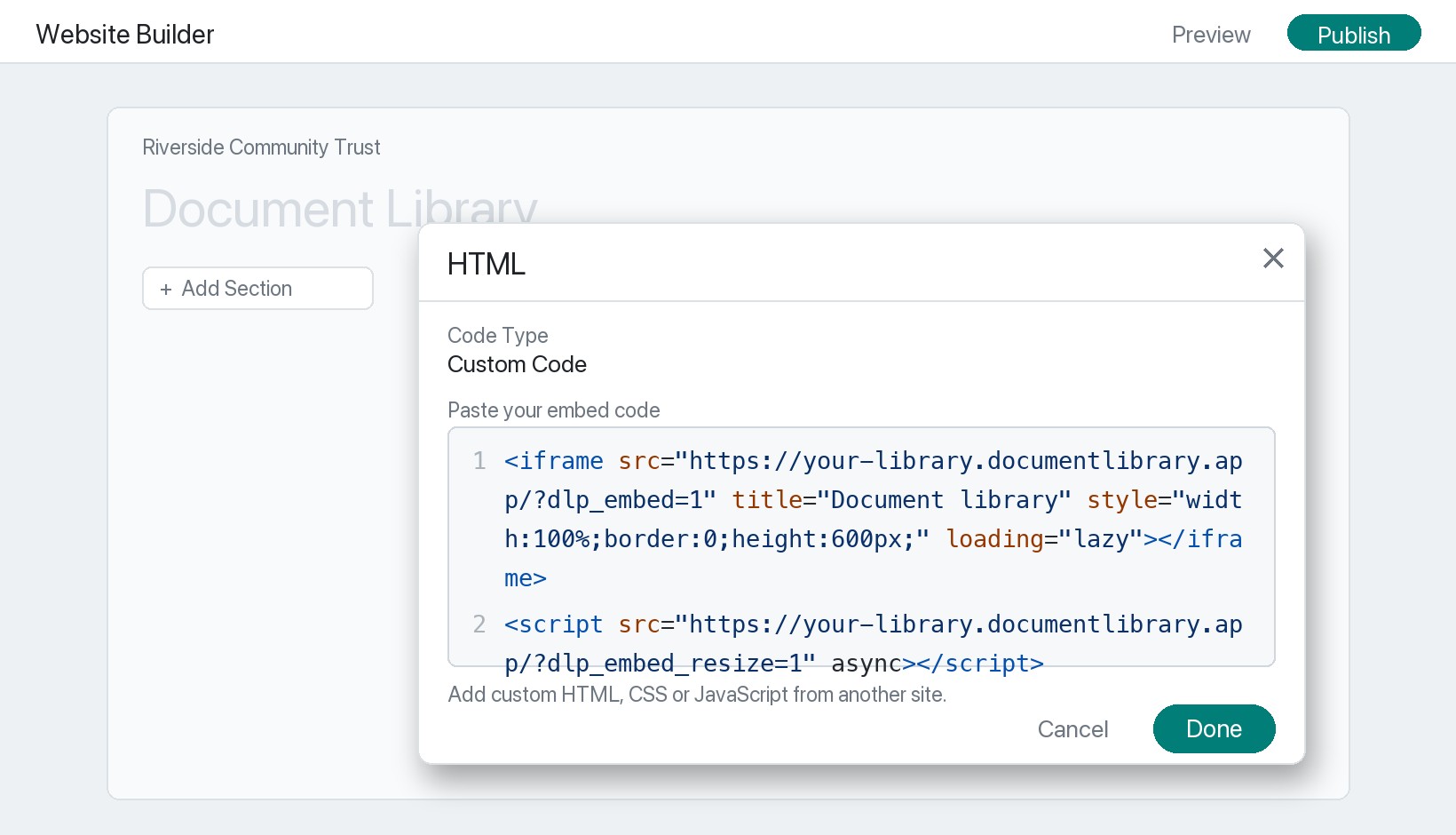
<iframe src="https://your-library.documentlibrary.app/?dlp_embed=1" title="Document library" style="width:100%;border:0;height:600px;" loading="lazy"></iframe>
<script src="https://your-library.documentlibrary.app/?dlp_embed_resize=1" async></script>
Schritt 2: Öffne die Seite für deine Bibliothek
Wechsle im GoDaddy-Website-Editor zu der Seite, auf der die Bibliothek angezeigt werden soll, oder füge über die Seitennavigation eine neue hinzu und nenne sie zum Beispiel Dokumentenbibliothek. Scrolle zu genau der Stelle, an der die Bibliothek angezeigt werden soll.
Schritt 3: Füge einen HTML-Abschnitt hinzu
Klicken Abschnitt hinzufügen, suche nach HTML, und klicke auf Hinzufügen. GoDaddy fügt dann einen HTML-Abschnitt ein, der ein Benutzerdefinierter Code ein.
Schritt 4: Füge deinen Einbettungscode ein
Bestätige, dass als Codetyp Benutzerdefinierter Code, füge das Snippet aus Schritt 1 in das Feld ein und klicke Fertig.
Schritt 5: Veröffentliche deine Bibliothek und sieh sie dir an
Klicken Veröffentlichen oben rechts. Öffne dann die Seite, um deine Dokumentbibliothek zu finden. Besucher können sie durchsuchen, nach Kategorie filtern und jedes Dokument in der Vorschau ansehen oder herunterladen. Gut zu wissen: Während du noch bearbeitest, zeigt GoDaddy oft einen Platzhalter an der Stelle des HTML-Abschnitts an. Das ist normal, die echte Bibliothek wird auf der veröffentlichten Seite gerendert.