A Google Drive embed code lets you display files directly on your website. It’s an excellent way to keep people on your website instead of sending them to view the files on Google Drive.
Google provides embed codes for single files, folders and native documents, but each type works a little differently and some of the menus are well hidden. In this guide, I’ll cover:
- How to get the embed code for a single file, including where Google hides the official menu.
- How to embed a PDF from Google Drive with the right size and settings.
- The embed code for a whole folder, in list or grid layout.
- Embed codes for Google Docs, Sheets and Slides using Publish to web.
- A quick note on video embeds.
- What Google Drive embeds can’t do, and an easy upgrade when you hit those limits.
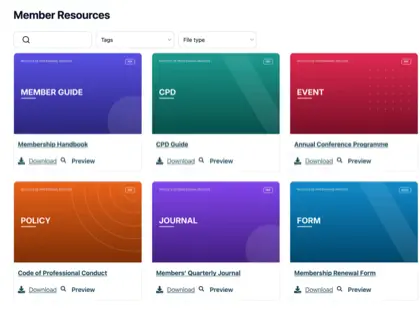
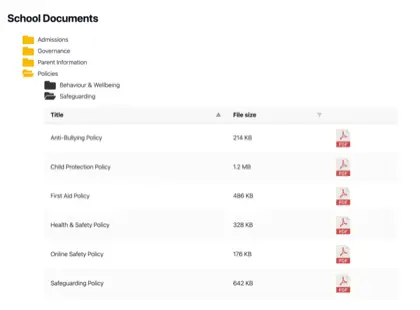
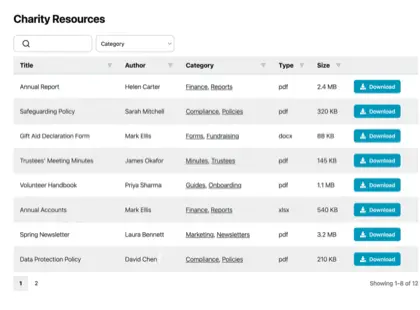
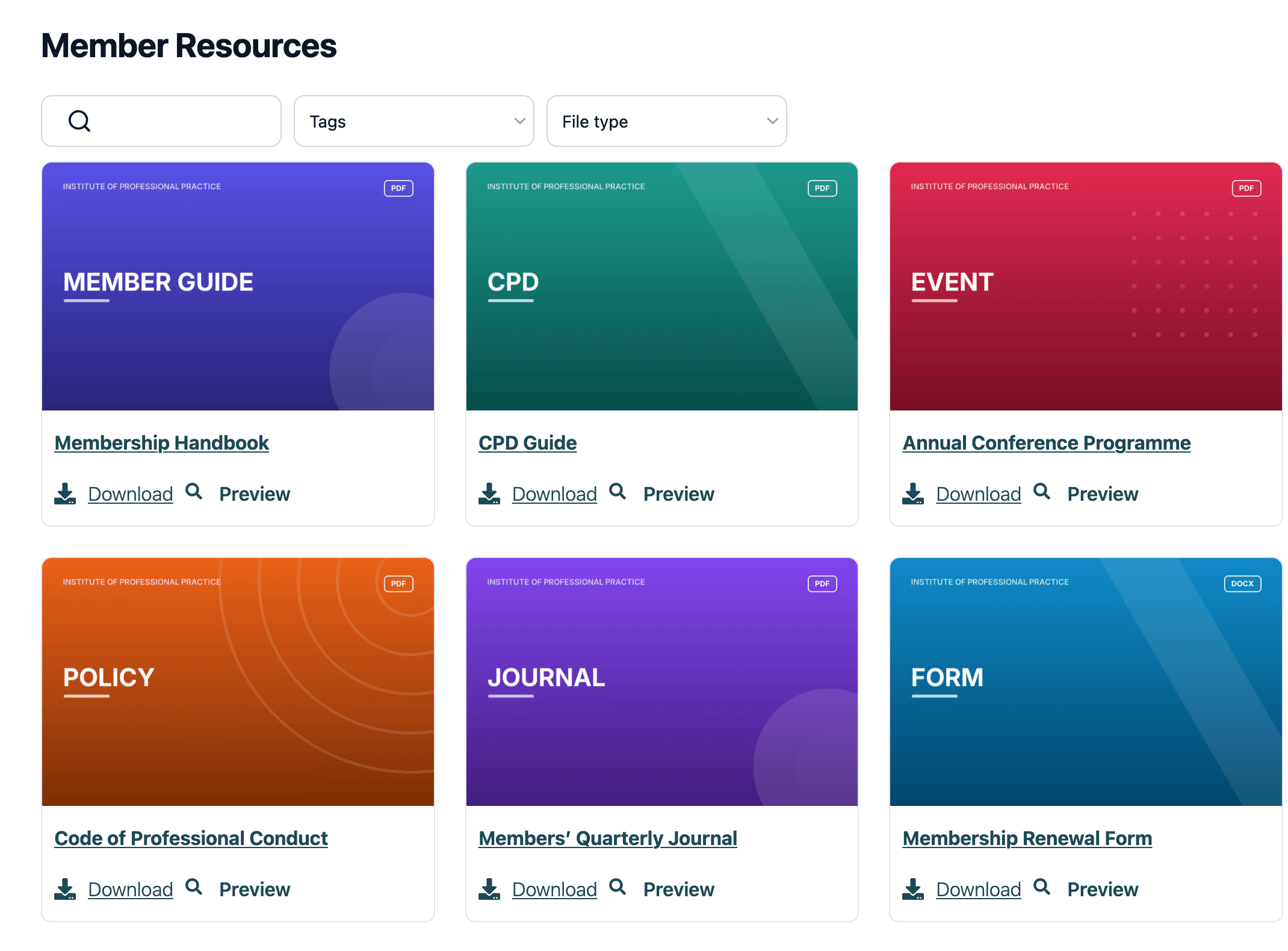
The upgrade in question is our own Document Library Pro. It can turn a Google Drive folder into a searchable, branded document library on your website, like the one below, and I’ll show you cómo funciona at the end.
How to get the embed code for a Google Drive file
Google Drive has an official embed menu, but it only appears after you open the file’s preview in its own browser tab. Here’s the full route:
- Make the file public. Right-click it in Drive, choose ‘Share’, and set General access to ‘Anyone with the link’ with the Viewer role. Embeds only work for public files, which I’ll come back to later.
- Double-click the file in Drive to open its preview.
- Click the three-dot menu in the top-right corner and choose ‘Open in new window’.
- In the new tab, click the three-dot menu again. An ‘Embed item’ option now appears.
- Click ‘Embed item’ and copy the iframe code from the popup.
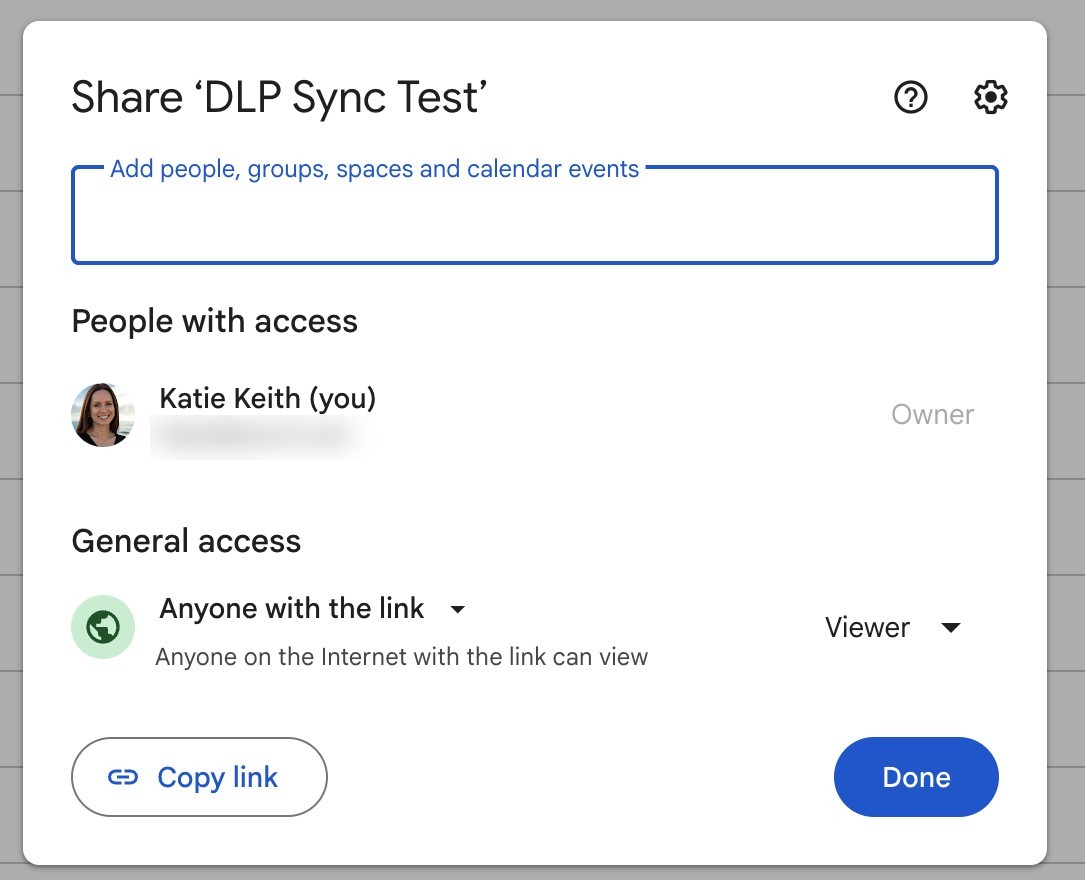
The code from the popup looks like this, with your file’s ID already filled in:
<iframe src="https://drive.google.com/file/d/FILE_ID/preview" width="640" height="480" allow="autoplay"></iframe>You can also skip the menus entirely and build the code by hand. Take the file’s sharing link, which looks like https://drive.google.com/file/d/FILE_ID/view?usp=sharing, and replace everything from /view onwards with /preview. Use that URL in the iframe’s src and you get an identical embed.
El width y height values are yours to change. Google defaults to 640 by 480 pixels, and I find width="100%" more useful because the embed then fills whatever column your page gives it.
The finished code goes anywhere your website accepts HTML, whether that’s a custom HTML block in WordPress, an embed element in Squarespace or Wix, or the page’s code itself. This snippet works for PDFs, images, videos and most other file types.
How to embed a PDF from Google Drive
PDFs use exactly the same embed code as any other Drive file. The difference is what visitors see: A PDF renders in Google’s document viewer, with page scrolling and zoom controls built in. This makes Drive a genuinely decent way to display a single PDF without uploading it to your website.
It’s also the file type people care about most. When we analyzed 500 sites using our Document Library Pro software, PDFs were by far the most common type of document being shared.
<iframe src="https://drive.google.com/file/d/FILE_ID/preview" width="100%" height="800" allow="autoplay"></iframe>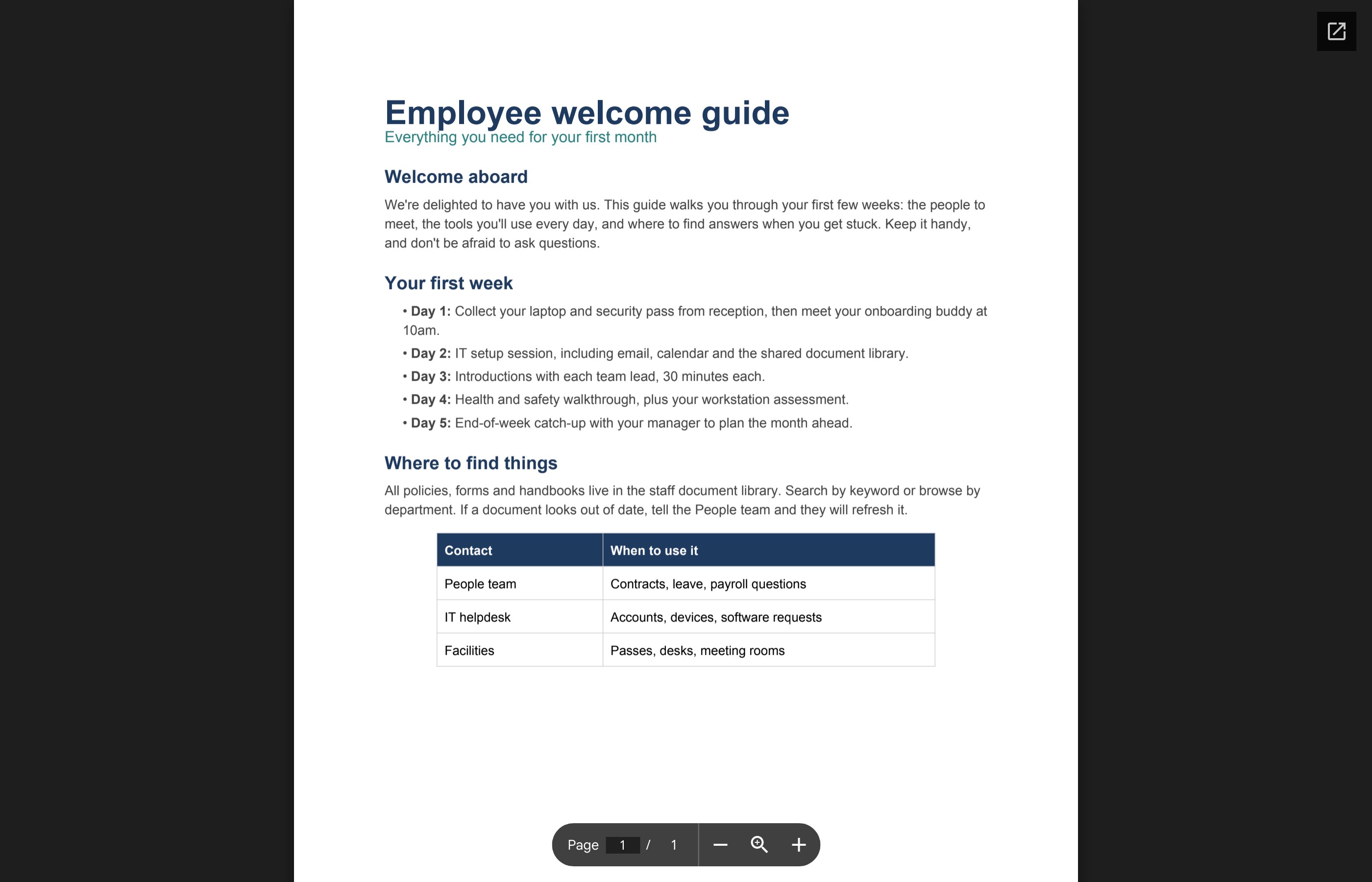
I recommend a taller height for PDFs than for other files. At the default 480 pixels, a portrait A4 or Letter page is cut off mid-paragraph and visitors have to scroll inside a small box. Around 800 pixels shows most of a page at a readable size.
Two PDF-specific things to know. The viewer includes a pop-out icon that opens the file on drive.google.com, so readers can always leave your site and view it there. And if you don’t want people saving the file, open the file’s sharing settings and disable the download, print and copy options for viewers. The embed still displays the PDF, but the download controls disappear.
An iframe is fine for one or two PDFs. If you’re publishing dozens of them, embedding each one on its own page gets unmanageable, and a searchable PDF library is a better structure. I’ll cover the syncing option for that at the end.
The embed code for a Google Drive folder
Google doesn’t offer an ‘Embed item’ menu for folders. However, Drive has a separate embedded folder view that has worked reliably for over a decade, even though Google has never documented it. The format is:
<iframe src="https://drive.google.com/embeddedfolderview?id=FOLDER_ID#list" width="100%" height="600" frameborder="0"></iframe>El FOLDER_ID is the string after /folders/ in the folder’s URL. The folder itself must be shared as ‘Anyone with the link’, exactly like a single file.
El #list on the end controls the layout, and there are two options. For example:
- #list - Compact rows showing each file’s name and icon. This suits document collections.
- #grid - Thumbnail tiles with a preview image for each file. This suits images and slide decks.
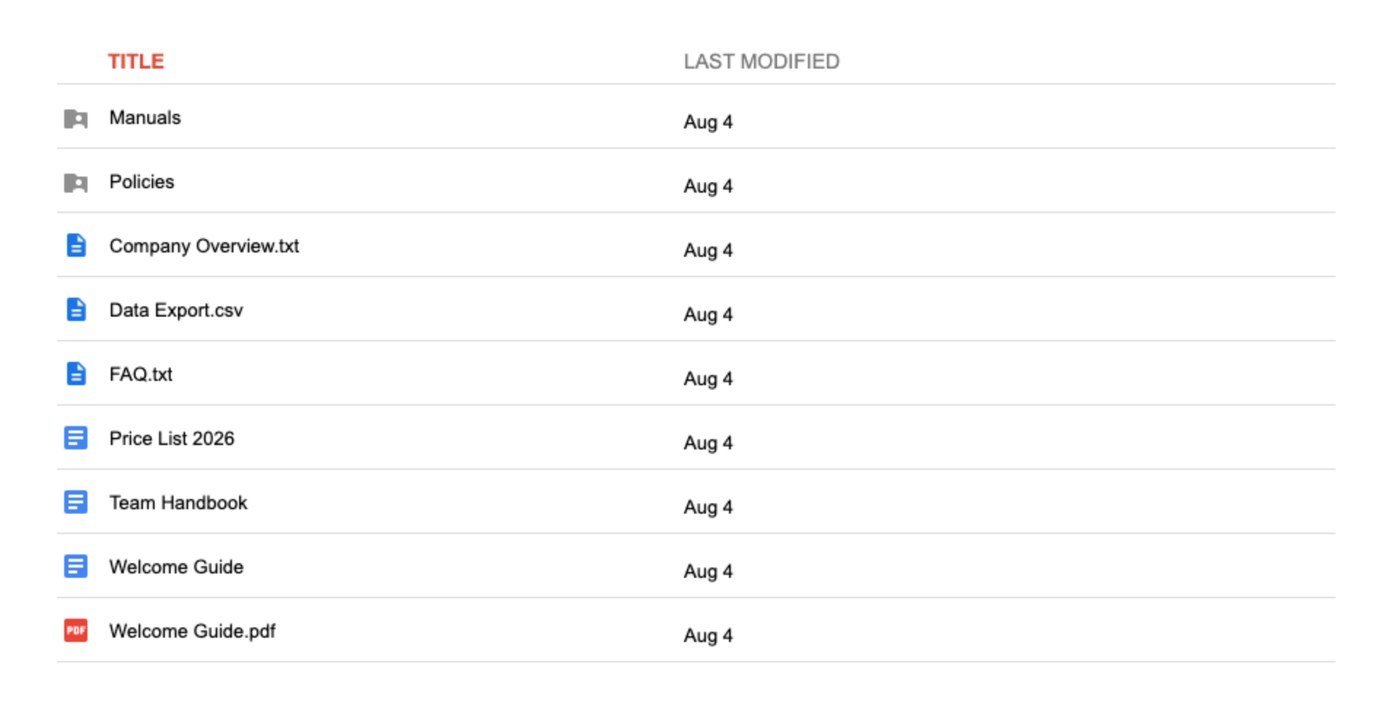
The embedded folder view always shows the folder’s current contents. When you add a file to the folder in Drive, it appears on your website automatically, which is the main reason people choose a folder embed over individual file embeds. Clicking any file opens it on drive.google.com in a new tab rather than on your site. I’ve compared the iframe with every other way to mostrar una carpeta de Google Drive en tu sitio web in a separate guide.
Embed codes for Google Docs, Sheets and Slides
Native Google formats work differently. A Doc, Sheet or Slides deck isn’t a file that Drive previews; instead, each editor has its own Publish to web feature that generates the embed code. In the editor, go to File → Share → Publish to web, switch to the ‘Embed’ tab, click ‘Publish’ and copy the iframe.
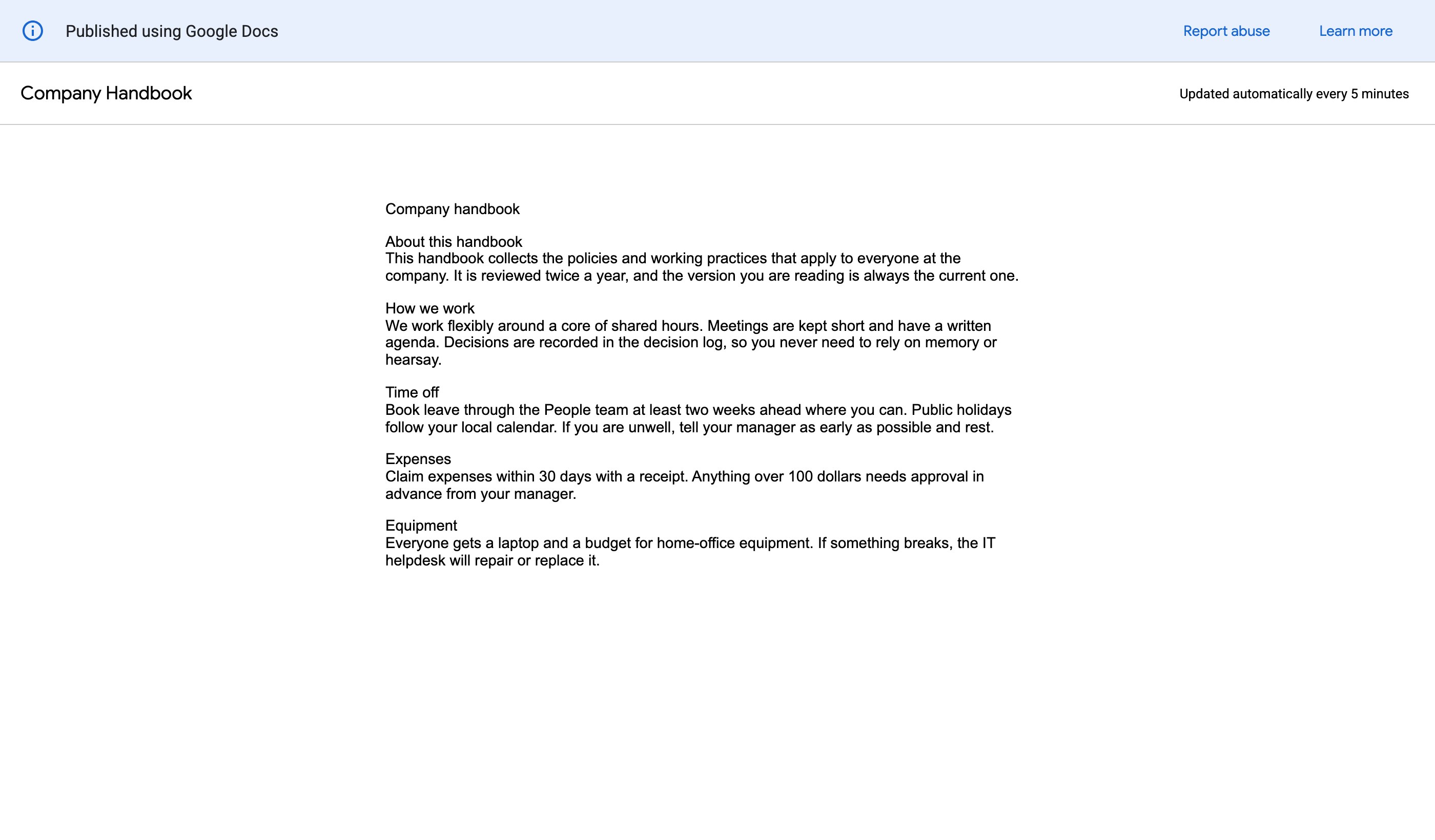
Each app produces a slightly different embed:
- Google Docs - A clean read-only copy of the document, at a URL ending in
/pub?embedded=true. - Google Sheets - A scrollable spreadsheet view. You can publish the whole workbook or a single sheet, and the URL ends in
/pubhtml. - Google Slides - An interactive player with next and previous buttons, plus options for auto-advancing the slides. The URL ends in
/embed.
Published embeds update themselves. When you edit the original document, the published version refreshes automatically, although it can take a few minutes to catch up. Please be aware that publishing creates a public copy of the document, separate from your sharing settings, and it stays public until you choose ‘Stop publishing’ from the same menu.
Embedding a video from Google Drive
Video files use the standard /preview embed code, and the iframe displays Drive’s video player. The allow="autoplay" attribute in Google’s generated code is what permits the video to start playing once a visitor clicks it.

Drive is fine for sharing a video with a small audience, such as a training clip on an intranet. However, Drive is not a video host. Popular files hit Drive’s playback limits and show an error instead of the video, and there’s no quality selector or any of the player options a real video platform offers.
For anything public-facing, upload the video to YouTube and embed it from there instead.
What the Google Drive embed code can’t do
Google Drive embeds are free and quick, and for a single file they’re often all you need. I use them myself for one-off documents. Once an embed becomes the way your organization shares documents, its limits start to cost you:
- Sin búsqueda - The embedded folder view has no search box. Visitors scroll the list until they spot the right file name.
- No styling - You can’t change the fonts, colors or layout inside the iframe. The embed looks like Google Drive, not like your website.
- A bare folder view - Files appear as names and icons only. There are no descriptions, no download buttons and no way to preview a file without leaving your site.
- Everything must be public - Embeds only work with ‘Anyone with the link’ sharing. The folder ID sits in your page’s source code, so anyone can open the whole folder directly on Drive. There’s no way to restrict an embed to logged-in users or members.
- No download tracking - Google gives you no statistics on views or downloads, so you’ll never know which documents people use.
- No file selection - A folder embed shows everything in the folder. If one file shouldn’t be on your website, you have to move it out of the folder.
None of these matter for embedding one PDF on a page. All of them matter when the folder is your policy library, your product manuals or your member resources.
When you outgrow the iframe: Sync the folder to a document library
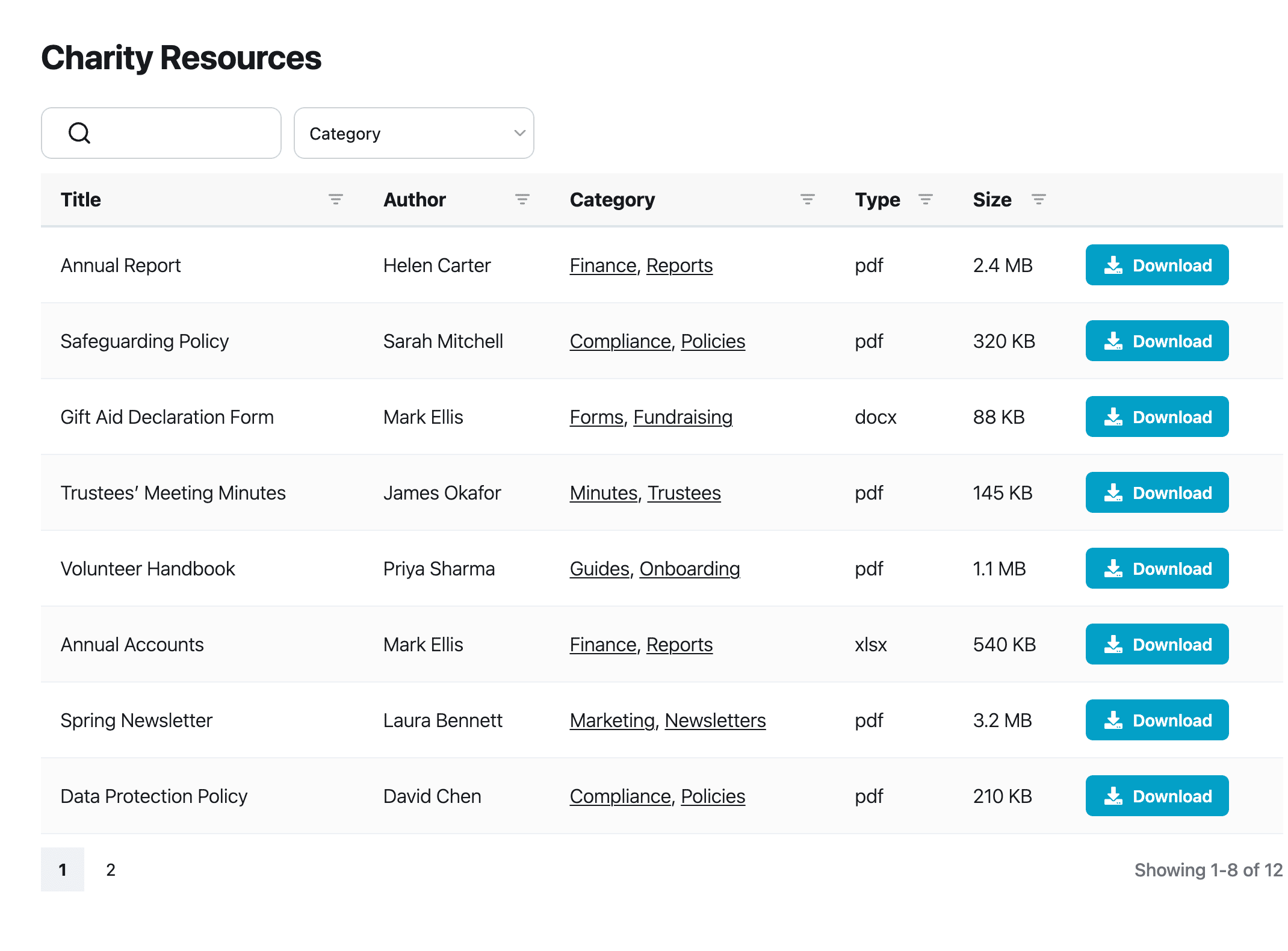
We built the folder sync feature in Document Library Pro to close exactly this gap. Instead of an iframe showing a window onto Drive, it turns your Google Drive folder into a real document library on your own website, and the two stay in sync.
The setup is a single step: Paste the folder’s share link into a library category. Every file in the folder becomes a document automatically, and subfolders become subcategories, so the structure you already have in Drive carries straight over.
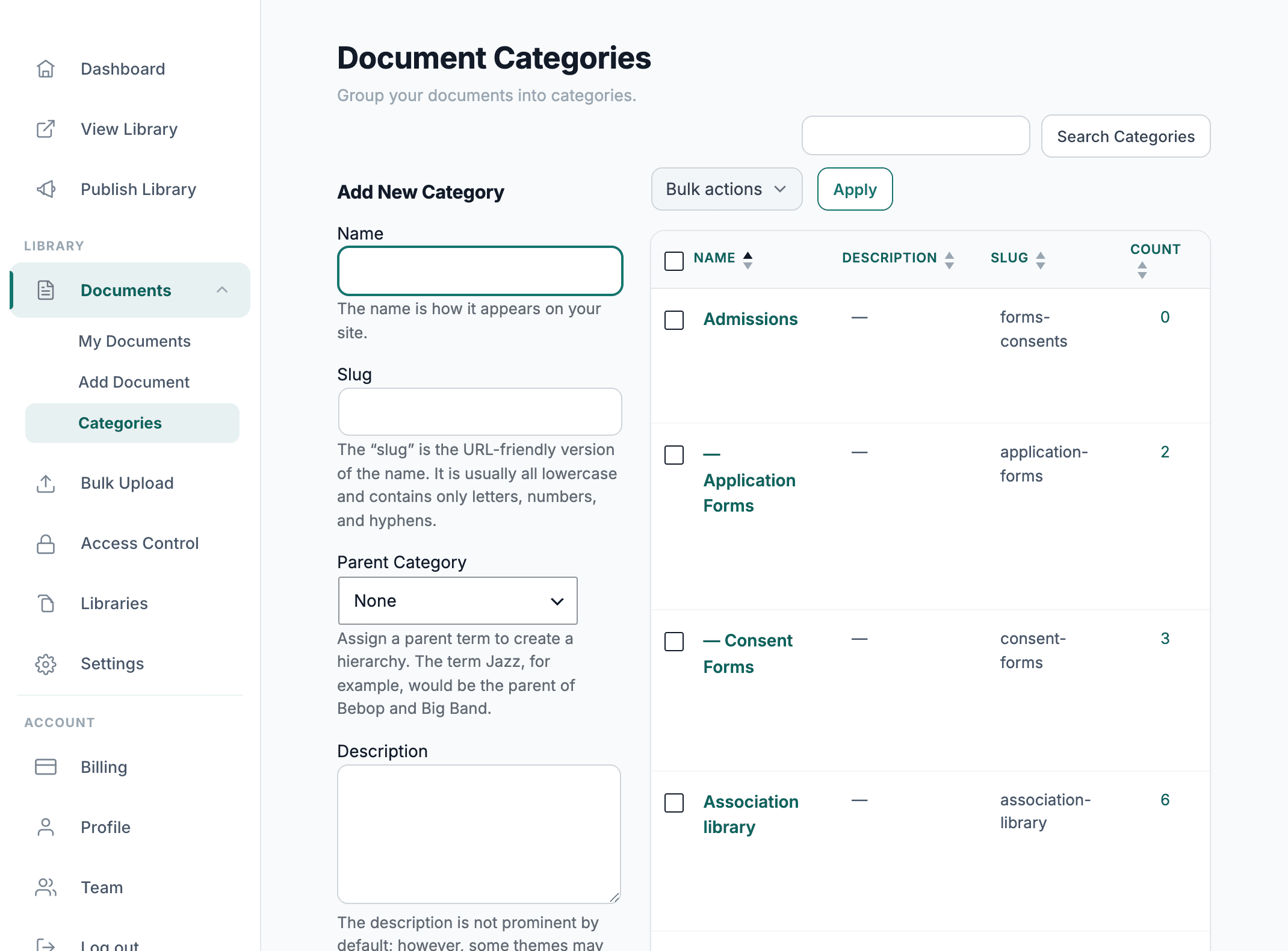
The library re-syncs with the folder every day, or on demand, so adding a file in Drive still publishes it to your website just like the iframe does. Two design decisions are worth knowing about before you choose this route:
- Sin claves de API ni conexiones de cuenta - The sync only needs the folder’s public share link, so setup really is just pasting it in.
- La carpeta es la fuente de referencia - Document Library Pro only ever reads from your folder and never changes it. Synced documents are read-only in your library admin too, so the folder and the library can’t drift apart.
You can read exactly how it works in the folder sync documentation. Folder sync works with Dropbox folders too, so you can publish folders from both services in one library.
A synced library also removes the iframe limitations I covered earlier. Your visitors get instant keyword search, category filters, document previews and download buttons, all styled to match your branding rather than Google’s. You can restrict the library to members or password-protect it, and you can see which documents people are viewing and downloading. Readers stay on your site the whole time.
Most Document Library Pro libraries belong to nonprofits, organizaciones sanitarias, local councils and membership associations. Their libraries hold policies, meeting minutes, clinical guidance and member resources, which is exactly the kind of content that starts life in a shared Drive folder and then outgrows a bare iframe.
Because the library is embedded with a snippet of its own, it works on any platform: WordPress, Shopify, Squarespace, Wix, Webflow, a sitio personalizado or an internal intranet. You keep managing files in Google Drive, which is the part of the iframe approach genuinely worth keeping, and the library handles the presentation.
Preguntas frecuentes
How do I get the embed code from Google Drive?
Open the file’s preview, click the three-dot menu and choose ‘Open in new window’. In the new tab, click the three-dot menu again and choose ‘Embed item’, then copy the iframe code. Alternatively, take the file’s sharing URL and replace /view?usp=sharing con /preview dentro de un iframe.
Can I embed a Google Drive folder on my website?
Yes. Google Drive has no embed menu for folders, but the URL https://drive.google.com/embeddedfolderview?id=FOLDER_ID#list displays a public folder inside an iframe. Change #list a #grid for a thumbnail layout. For a searchable, branded alternative, Document Library Pro can sync the same folder into a full document library on your website. On WordPress, my guide to embedding a Google Drive folder in WordPress covers the platform-specific steps.
Why does my Google Drive embed show a blank box or an access error?
The file or folder isn’t shared publicly. Open its sharing settings and set General access to ‘Anyone with the link’. For Docs, Sheets and Slides, you also need to use Publish to web rather than the file embed code.
Does an embedded file update when I change it in Drive?
Yes. A file embed always displays the current version of the file, and a folder embed always shows the folder’s current contents. Published Docs, Sheets and Slides republish automatically after edits, with a delay of a few minutes.
Can I track downloads from a Google Drive embed?
No. Google Drive provides no view or download statistics for embedded files or folders. If you need to know which documents people use, sync the folder to Document Library Pro instead, which records views and downloads for every document.
Which Google Drive embed should you use?
For a single file, use the /preview iframe, and get it from the ‘Embed item’ menu if you’d rather not edit URLs. For a Doc, Sheet or Slides deck, use Publish to web. For a folder, the embeddedfolderview URL is the only iframe option Google gives you, and it’s a reasonable way to list a handful of public files.
Beyond that point, the iframe is the wrong tool. A document collection that people rely on deserves search, structure, branding and access control, and no amount of iframe tweaking adds those. Document Library Pro’s folder sync gives you all of it while your files stay exactly where they are in Google Drive - probarla gratis durante 14 días.